
October 6, 2026
The Aion 2 Speeder has been updated to version 132.
Targeting commands with xyz coordinates will now select the target based off distance from your character. The entity must still reside within the specified radius of the xyz coordinates, but if there are multiple potential targets, the one selected will be the one closest to you.
The following script commands have been added:
- "tcpT[*][distance],[height]" — Targets the closest enemy player currently targeting you within "distance" and "height."
- "tcmT[*][distance],[height]" — Same as "tcm" but only targets mobs currently targeting you. Like "tcm," you can supply xyz coordinates if you want to check mobs within a certain radius in the game world.
- "ibt[distance]" — If you are currently targeted by a mob or enemy player within "distance," the rest of the keys line will process. The inverse is possible with !ibt.
- "ibtM[distance]" — Same as "ibt" but only checks mob targets. Example:
- keys=ibtM2000|tcmT2000|dbg % now targeting the closest mob targeting me
- "ibtP[distance]" — Same as "ibt" but only checks enemy player targets. Example:
- keys=ibtP2000|tcpT2000|dbg % now targeting the closest enemy player targeting me
Fixed issue with line 32 settings not being cleared.
Fixed issue with ESP when using window mode with the Purple client.
The 'abl' command will now exit out of the wait loop when you change targets.
October 4, 2026
The Aion 2 Speeder has been updated to version 131.
The following new script commands have been added:
- "cthpM[max health]" — If your current target's max HP is less than or equal to "max health," the rest of the keys line will process. The inverse is possible with !cthpM. This was added as an easy way to check for bosses or elite mobs. As such, you will generally want to use the inverse (!cthpM). Example:
- keys=!cthpM1000000|dbg % target has over a million HP!
- "dlg" — If you are currently engaged in dialogue with an NPC, the rest of the keys line will process. The inverse is possible with !dlg. This can be used to quickly cycle though dialogue. Example:
- [113]
keys=dlg|70d|rs120,150|70u|rs120,150
repeat=2 - This example will spam F whenever dialogue is detected.
- [113]
You can now enable/disable ESP snap lines for individual entity types (mobs, players, objects). Check out the ESP settings here.
The %class% wildcard for the ESP will now work with line 32 entities if the entity is a player.
The ESP will no longer cause unminimized windows to be placed on top of the game window.
Implemented safeguards for possible crashes when too many functions are called recursively. Speeder will display an error and exit out from all functions.
The following setting has been added:
- Line 79) Only players with these status effects will be shown on the ESP. This can be used to filter out players who do not have PvP enabled. Separate each status effect with the '|' character, such as
1000|1001|1002|etc.
October 2, 2026
The Aion 2 Speeder has been updated to version 130.
The following script commands have been added:
- "itl" — If loot is available nearby, the rest of the keys line will process. The inverse is possible with !itl. This command is similar to "iti" but ONLY checks for loot and not other interactable entities. You can use this command to set up a simple auto-loot macro. Example:
- [113]
keys=!eq % autoloot,1|store % autoloot,1|dbg % Auto-loot enabled
keys2=itl|dbg % Looting!|70d|rs120,150|70u
keys3=s200
endkeys=dbg % Auto-loot disabled|store % autoloot,0
repeat=2
- [113]
- "get % cam" — Populates the global variables CAMY and CAMP with the camera's current yaw and pitch. These will be values between -180 and 180.
Fixed some ESP issues related to boxes freezing in place whenever the ESP was reloaded.
September 30, 2026
The Aion 2 Speeder has been updated to version 129.
Fixed an issue where line 78 hidden objects would not apply to entities listed on line 32.
The 'wpn' script command can now contain an asterisk, such as wpn*, to check only the first four digits of your current weapon ID. This allows you to use your weapon to determine your current class since all class weapons have static numbers for the first four digits. For example, all ranger weapons begin with 1104. You can find these IDs listed here, and you can also use this site.
You can now reskin your current equipment:
- -reskin [slot] [item ID] [timer] — Reskins your current outfit based on "slot" and "item ID." This allows you to wear any armor or weapon in the game. Valid "slots" are weapon, head, shoulders, chest, legs, hands, feet, and cloak. "Item IDs" can be found here or with the -item console command. "Timer" is optional and is the number of milliseconds Speeder will overwrite the equipment in memory before stopping. This is to avoid stressing your CPU unnecessarily. In order for this command to work, you must use the command first → open your inventory → unequip the item from the appropriate slot → and then re-equip it. You should now have the updated skin. If it's easier, you can also use the in-game hotkeys to change gear sets. For now, this command needs to be applied each time you zone, but I will see what I can do. Do note you can set up a macro to quickly reskin your gear if you want:
- keys=cc % -reskin chest 210130001 10000
The command is finicky right now and doesn't always work first try. I will try to improve it.
September 28, 2026
The Aion 2 Speeder has been updated to version 128.
Target circles have been added to the ESP. You can now very easily see the backside of your current target. By default, the rear is colored green, and the front is colored red. You can adjust target circles via line 77 in config.txt:
- Line 77) Settings for the target circle on the ESP. The syntax is as follows:
[disable]|[thickness]|[front color]|[back color]
such as
0|2|16711680|65280
to enable the target circle, set the thickness to 2, set the front color to red and the back color to green. These are the default settings if this line is blank. The target circle provides a visual indication of your current target's facing direction for easier back attacks.
It is now possible to discern and target players based on their class (e.g., Ranger, Sorcerer, etc.). The "class ID" parameter has been added to the 'tcp' and 'cnp' commands. See the guide for examples.
The ESP can also now display the class names for all players with the %class% wildcard. For example, setting player ESP text to
%name% [%class%]
will display the name of the player with their class in brackets.
Class names and IDs can be discerned with the -allplayers command. I have also added them to the guide.
The "check CD" parameter for the 'chid' script command will now also check whether the ability is available to be used (i.e., not greyed out).
By default, feathers you have already found will not be displayed on the ESP. You can hide additional objects with the following new line in config.txt:
- Line 78) Object models you would like Speeder to ignore on the ESP. This line was primarily added to hide feathers you've already found. Simply list the models with the '|' character separating each, such as
25044|70194|111546
To discern object models, use the -allobjects command. Used feathers have an ID of 25044. If this line is blank, this ID will automatically be ignored.
September 23, 2026
The Aion 2 Speeder has been updated to version 126.
The "itp" script command can now contain an asterisk, such as itp*, to check for enemy players only.
September 18, 2026
The Aion 2 Speeder has been updated to version 125.
An issue where the stack count for status effects was incorrect if reduced via ability usage has been fixed.
An issue where Speeder could briefly lose the entity list address has been fixed.
Method Five fixed.
September 15, 2026
The Aion 2 Speeder has been updated to version 123.
The following script commands have been added:
- "hpS[shield]" — Checks your current protective shield value (the blue value in your health bar). If your current shield value is less than or equal to "shield," the rest of the keys line will process. The inverse is possible with !hpS. Example:
- keys=!hpS0|dbg % shield currently active!
- "cthpS[shield]" — If your current target's shield value (blue line in the health bar) is less than or equal to "shield," the rest of the keys line will process. The inverse is possible with !cthpS. Example:
- keys=!cthpS0|dbg % target has shield active!
An issue where Speeder would fail to parse the entity list has been fixed.
September 14, 2026
The Aion 2 Speeder has been updated to version 122.
Adjusted the main thread of the program to increase performance. You should notice less CPU usage. This should also resolve crashes related to the cooldown hack.
Fixed the "tdir" script command not working correctly.
September 9, 2026
The Aion 2 Speeder has been updated to version 121.
You can now assign cooldown reduction timers to individual abilities via line 75 in config.txt:
- Line 75) The filename (e.g., cdhacks.txt) containing the cooldown IDs and reduction timers for each cooldown you want to reduce its timer. The -create75 console command will fill out this file for you and automatically add the filename to this line. On each line in the file, the syntax is as follows:
[cooldown ID]:[timer reduction in milliseconds] [comment]
such as
14130000:300 - ranger slot 3 cooldown
The -create75 console command will fill out all the IDs for you; all you have to do is change the timers. I have found a reduction of 300 milliseconds to work well, but this will likely vary based on ping.- The -speed console command will allow you to see cooldown adjustments in real time.
The cooldown hack (lines 74 & 75) will reverify that the ID matches in memory to prevent crashing while zoning.
The field of view hack will no longer shake the screen when zooming in or out.
The following console commands have been added:
- -create75 — Speeder will create a randomly named text file with all your cooldown IDs to be used with the cooldown reduction hack and add its name to line 75 in config.txt. In this file, you can adjust the number of milliseconds you want removed from each of your cooldowns. See line 75 for more details.
- -res — Speeder will recalculate the width and height of the game window, along with various other resolution settings. If you resize your game window or move its position, use this command.
September 8, 2026
The Aion 2 Speeder has been updated to version 119.
Small cooldown hack added to config.txt:
- Line 74) The number of milliseconds you would like removed from your cooldown timers. Due to ping/latency, there is a small delay between when you activate a cooldown and when the server knows you've activated it. This delay can be removed from your cooldown timers, allowing you to activate them earlier than normal. Unless you have really high ping, this delay is short and will have a very minor impact on your DPS, but over the course of a longer fight, it may allow you a few extra usages of your cooldowns. For me, ~300 works well. To test whether the hack is working, you can use a larger number, like 5000, and you will see 5 seconds removed from your cooldowns, though you will not actually be able to activate them that early.
I reprogrammed the parsing of script commands to be far more efficient. As such, macros should process faster and with less CPU usage than before.
The 'abl' command can now auto-target the closest enemy player if 'target ID' is set to 3. This allows you to target another entity while also attacking a player at the same time.
September 5, 2026
The Aion 2 Speeder has been updated to version 118.
Speeder can now detect 'consecutive casts' counts for hotbar abilities and will stop trying to use a cooldown when the usage count reaches 0. This affects the 'ch' and 'chid' commands. The -hotbar console command will also now display the remaining usage/stack count.
September 4, 2026
The Aion 2 Speeder has been updated to version 115.
I've fixed a few Brawler-related issues with the 'abl' and 'chid' commands. Using abl1-24 will now use the correct hotbar ability regardless of whether rage is active or not. Conversely, when you lose rage status, Speeder will automatically update 'abl' with the correct ability ID. In this way, you can safely use abl1-24 without timing out or without having to use the full ID. The 'chid' command has been similarly updated and will reflect rage attack IDs when rage is active. The -hotbar console command will also show rage attack IDs. For whatever reason, cooldowns are tied to the non-rage IDs, so the 'cd' command has not been changed.
The following script command has been added:
- "chat" — If you are currently typing in the game (e.g., chat window or search bar), the rest of the keys line will process. The inverse is possible with !chat. This command can be used to prevent macros from inputting text into the chat window. Example:
- keys=chat|dbg % Currently typing! Skipping to end of macro|gt*
keys2=dbg % OK to press keys here
keys3=nop
- keys=chat|dbg % Currently typing! Skipping to end of macro|gt*
August 31, 2026
The Aion 2 Speeder has been updated to version 114.
Fixed an issue with 'abl' command when using the 'wait timer' parameter where Speeder could queue an extra usage of the ability. This was mainly an issue when stopping a macro.
August 26, 2026
The Aion 2 Speeder has been updated to version 113.
The 'wmark?' command has been fixed.
The 'max' command will now make the game the foreground window even if the game is not minimized (i.e., behind another window).
The line 47 attack speed hack has been changed. The value you input now functions as an additive and will stack with your base attack speed. For example, if you input 0.5 into line 47, and you have a base attack speed of 1.0, your total attack speed will become 1.5. By using the -speed console command, you can see this adjustment in real time. This should improve the functionality and ease-of-use of the hack as any number you input is now an increase. Before, it was possible to actually decrease your attack speed if you inputted a number lower than your base attack speed.
Having tested the line 47 attack speed hack on ranger, I have found 0.5 to work well (~10% DPS increase), but you will probably need to test different numbers depending on your base attack speed.
Other lines, like 56, that affect the line 47 attack speed hack now work the same way.
Line 16 animation hack no longer seems to affect DPS from my testing, so I would recommend using lines 47/56. I have not tested 62 yet.
If tab targeting is enabled (line 37), Speeder will only target entities within your camera's field of view unless you specifically tell Speeder to move the camera (e.g., tcm* vs. tcm).
August 21, 2026
The Aion 2 Speeder has been updated to version 112.
An issue where the hotbar ability IDs did not correspond exactly to the attack IDs performed by your character has been resolved with regard to the 'abl' script command. This fixes situations where you use commands like abl1,0,3000, and Speeder ends up waiting for the wrong attack ID because the hotbar ability ID does not perfectly match.
The following script command has been added:
- "twt" — Toggles tab targeting on. This has the same effect as setting line 37 in config.txt to 1. You can use this if you need to temporarily enable tab targeting for a specific command or entity. Example:
- keys=twt|tcm2000|twt-|dbg % targeted closest mob with tab
- "twt-" — Disables tab targeting. Use this command after 'twt' to revert back to memory targeting.
August 17, 2026
The Aion 2 Speeder has been updated to version 111.
The 'abl' command has been significantly improved. There was a race condition with some abilities where the hotbar would switch to the next ability in the rotation, causing Speeder to wait for this ability to fire instead of the ability it was supposed to use (i.e., the previously used ability). This was mainly an issue with left/right click abilities. As such, you can now perform perfect weaving with something as simple as this:
[113]
keys=abl2,0,3000|dbg % slot 2
keys2=abl1,0,3000|dbg % slot 1
keys3=nop
repeat=2
This works on any class regardless of your ping. I have also included full combat rotations for any class in the example macro section. With the 'abl' changes, Speeder can now perfectly weave any cooldown alongside your left click ability.
The following new setting has been added:
- Line 73) The default delay between iterations of macros with repeat=1 or repeat=2. When the end of a macro is reached, Speeder will pause the thread for ~10 milliseconds to give the CPU time to rest. This is standard practice and is the difference between 0% CPU usage and ~6% (per thread). As a result, macros have a 10-millisecond delay between repetitions—between the moment the final 'keys' line is activated and the first 'keys' line is repeated. If you would like to reduce this delay, you can do so here. With a decent CPU, it should be fine to use '1' or even '0' if you want macros to repeat as quickly as possible, but keep in mind Speeder will utilize more CPU if you do this, especially if you have multiple macros executing. If this line is blank, Speeder will default to '10.'
August 14, 2026
The Aion 2 Speeder has been updated to version 110.
The "cc" command for detecting crowd control abilities will now detect frozen and fear status effects.
The "get % MS" command will now populate XV, YV, and ZV variables with your current velocity. These can be used to determine whether you are moving. I included an example in the guide.
The following script command has been added:
- "wmark?" — The global variable WMS will be populated with the current status of waymarks. WMS will be set to 3 if waymarks are active and you are currently moving, 2 if waymarks are active and you are 'not' moving, 1 if waymarks are inactive and you are not moving but Speeder has not fully exited the waymark thread yet, and 0 if waymarks are inactive and Speeder has fully exited the waymark thread. Basically, if WMS is 0, it is safe to start waymarks. Otherwise, you should wait or attempt to pause them. Example:
- keys=wmark|dbg % pausing waymarks
keys2=wmark?|!eq % WMS,0|dbg % waiting for waymarks to exit|s1000|gt2
keys3=dbg % waymarks fully exited
- keys=wmark|dbg % pausing waymarks
August 9, 2026
The Aion 2 Speeder has been updated to version 109.
An issue where the "aid" script command would fail to check IDs from the line 62 file if the command contained more than one argument has been resolved. For example, aidT-1,0.2 was not working, but aidT-1 was working.
The -dist console command will now automatically set the DIST global variable to 1 if active.
August 6, 2026
The Aion 2 Speeder has been updated to version 108.
The "tbt" script command can now contain an angle offset, which allows you to teleport anywhere around your current target, including the back, sides, and front. See the guide for the new syntax.
Speeder will now automatically ignore all mobs with the same 'team' ID as your character. This includes summoned pets, as well as entities like exploding traps (ranger). Basically, you no longer have to use line 35 to ignore these mobs.
The -stats console command can now contain a "timer" argument, which allows you to filter out status effects you don't need to see. See the guide for the updated syntax.
August 1, 2026
The Aion 2 Speeder has been updated to version 107.
The "cphp" command normally ignores dead players but will now check specifically for dead players if the 'hp' argument is set to 0.
The following script command has been added:
- "wmark" — Waymarks will be paused or resumed depending on their current state. This command has the exact same effect as pressing the line 24 key in config.txt.
July 25, 2026
The Aion 2 Speeder has been updated to version 106.
The "get % target" script command will now also populate the global variables TX, TY, and TZ with your target's coordinates.
July 22, 2026
The Aion 2 Speeder has been updated to version 105.
The following script command has been added:
- "ap?" — If auto-pathing is currently active, the rest of the keys line will process. The inverse is possible with !ap?. Example:
- keys=ap?|dbg % auto-pathing active!
July 17, 2026
The Aion 2 Speeder has been updated to version 104.
I've expanded the get % target command to include more data:
- "get % target" — Populates the following variables: TN (target's name), TD (target's distance), TID (target's ID), TANI (target's animation ID), TANIT (target's animation timer), TAID (target's attack ID), and TAIDT (target's attack target — this will be set to 1 if targeting you, 0 if not attacking, or otherwise to the ID of your target's target). Examples:
- keys=get % target|!eq % TAID,0|dbg % target is attacking with (VAR % TAID)
- keys=get % target|eq % TAIDT,1|dbg % target is targeting me with (VAR % TAID)
- keys=get % target|!cmp(VAR % TANIT),0.5|dbg % target has been performing an attack for over 0.5 seconds
The following command has been added:
- "get % relay" — Populates the RELAY global variable with the current status of the -relay console command.
July 14, 2026
The Aion 2 Speeder has been updated to version 103.
The following config settings have been added:
- Line 71) Ghost mode settings. Ghost mode allows you to fly around anywhere without actually moving from your real position. This is more of a 'fun' hack than a useful one—though maybe someone can find a use for it. The syntax is as follows:
[virtual key code]|[speed]
such as
113|10
to toggle ghost mode on/off with F2 and move at 10 speed (fairly slow). Line 51 must be set if you are not using WASD for movement. - Line 72) The virtual key code of the key you'd like to toggle the resizing of players on/off. While enabled, players will be shrunk to 0 size so that they will appear invisible. This may improve your FPS in city areas. Players need to actually move before the resizing takes place, so you may notice a few players remaining at normal size.
The "chid" command can now check the cooldown of the supplied ability ID:
keys=chid*0,1402,1|dbg % 1402 is assigned to one of my hotbar slots and is available to be used
July 13, 2026
The Aion 2 Speeder has been updated to version 102.
I have updated the "cd" command to work with status effects. For whatever reason, the last application of a status effect is in the same memory area. This can be used to determine the cooldowns for items/potions because almost all items apply some sort of status effect. By checking the last application time of the status effect, you can very accurately determine the cooldown of any item.
Here is the updated guide text:
- "cd[ID],[timer]" — There are two ways to use this command:
1) If the ability with an ID of "ID" has a timer of less than or equal to "timer" remaining, the rest of the keys line will process. The inverse is possible with !cd. If "ID" is set to a number less than 100, Speeder will instead check the ability assigned to that hotbar slot. Unlike the "ch" command, this command allows you to check the timer of any cooldown regardless of whether it is assigned to the hotbar or not (unless you set "ID" to a hotbar slot). If you are unsure what "ID" to use, use the cooldown you need the ID for, and then use the -cd console command. Whatever ability ID has a timer higher than 0 is the one you want. "Timer" is optional, should be in milliseconds, and allows you to queue an ability right before it comes off cooldown. If not included, Speeder will default to 0. Examples:- keys=cd14130000|dbg % Snare Shot is ready!
- keys=cd14130000,500|abl14130000|dbg % queuing Snare Shot!
- keys=cd3|abl3|dbg % Using hotbar slot 3 ability!
- 2) If the status effect with an ID of "ID" has last been applied longer than "timer" ago, the rest of the keys line will process. This is meant to be used with potions/items to determine whether the cooldown for the potion/item is up. Because items usually give you a status effect, we can use that to determine how much time has passed. Unlike abilities, "timer" is not optional, should be in milliseconds, and should reflect the cooldown of the item you want to check. For example, because regular potions apply the status effect 2101001, I can use cd2101001,30000 to check whether a potion with a 30 second timer is available to be used. As with abilities, you can use the -cd console command to check for the correct IDs to use.
- There are other uses for this command as well, such as checking for skill procs.

The wfa** command will double-check for negative timers.
All attack speed messages will now be blocked except for line 62 unless the -speed console command is used. This is to reduce spam.
July 8, 2026
The Aion 2 Speeder has been updated to version 101.
The "chid" command can now check every hotbar slot for the supplied "ability ID" if "slot" is set to 0. Example:
keys=chid*0,1402|dbg % an ability beginning with "1402" is assigned to one of my hotbar slots
The "wfa" command has been optimized.
An issue where addresses could be deleted if the .dll download took too long has been resolved. I am also in the middle of setting up a proxy server to improve download speeds for Chinese users.
July 6, 2026
The Aion 2 Speeder has been updated to version 100.
The following script command has been added:
- "cur" — If the cursor is currently active (e.g., AION1 Mode), the rest of the keys line will process.
The "str %" script command has been fixed.
I was working on detecting skill procs (e.g., Q ability) without having to rely on the hotbar, but it seems like every proc skill has a corresponding status effect, so I believe you can just check for that. If the status effect is active, the skill is proc'd, and you can use "cd" to check the cooldown.
July 3, 2026
The Aion 2 Speeder has been updated to version 99.
Brawler rage commands have been added to Speeder. This is essentially the equivalent of the 'mp' command for Brawler.
- "rage[rage]" — If your current rage value is less than or equal to "rage," the rest of the keys line will process. The inverse is possible with !rage. Use this command in place of "mp" for Brawler. Example:
- keys=!rage500|dbg % my rage value is greater than 500
- "rage*[percent]" — If your current rage percentage is less than or equal to "percent," the rest of the keys line will process. The inverse is possible with !rage*. "Percent" should be a decimal between 0 and 1.0 with 0.5 equal to 50%. Use this command in place of "mp*" for Brawler. Example:
- keys=!rage*0.5|dbg % I have greater than 50% rage.
The following config.txt setting has been added:
- Line 70) If 1, Speeder will hide your character's nameplate. I've seen this requested a lot on Reddit, so I figured I'd add it to Speeder. Maybe it will convince NCSoft to finally add it to the game.
July 1, 2026
The Aion 2 Speeder has been updated to version 98.
The following new console commands have been added:
- -resize [entity] [size] — Resizes "entity" by "size." "Entity" can be "t" for current target or "s" for self. Most normal-sized entities have a size of 1.0, so anything higher than 1.0 will increase their size, and anything lower will shrink them. This does affect targeting distance and collision detection. Example:
- -resize t 2.0
- -dist — Changes the way Speeder calculates distance between your character and surrounding entities. Unlike normal distance calculation, Speeder will take into account the size of the entity's model, which may work better when determining whether you are in range to attack. If this option works well enough, I will enable it by default.
Fixed some addresses related to the new update.
June 28, 2026
The Aion 2 Speeder has been updated to version 97.
The following script command has been added:
- "ic" — If you are currently in combat, the rest of the keys line will process. The inverse is possible with !ic. This basically checks if your weapon is drawn due to combat. It will also return true if you are out of range, have an ability queued on your current target, and are moving toward it.
June 23, 2026
The Aion 2 Speeder has been updated to version 96.
The following script command has been added:
- "bset[batch set number]" — If the number of your active batch set equals "batch set number," the rest of the keys line will process. The inverse is possible with !bset. Your batch set is the set that controls all your different sets, like gear, skills, hotbars, etc. It's the one activated by the icon to the left of the hotbar. Example:
- keys=!bset3|33d|rs120,150|33u|dbg % pressing page up to swap to batch set 3 because it is not active
There has been some confusion since I added the "gset" command, which only checks your current gear set and not your batch set. Thus, if you had wanted to check your current batch set, you can now do so with "bset."
June 22, 2026
The Aion 2 Speeder has been updated to version 95.
The status IDs on line 57 in config.txt can now contain an asterisk to check only the first four digits of the ID. The same status effect can have multiple IDs, but the first four digits are generally the same, so this can make your life easier.
The status IDs on line 57 can now be used with the "cts" script command. This is accomplished by setting the "status ID" parameter to 1, such as cts1 or cts*1. "cts1" will check for the full 8- or 9-digit ID, and "cts*1" will check the first four digits. For example, if you have 1000* on line 57, cts*1 will return true if your current target has a status effect with an ID of 10000001, 10000100, 10000002, etc. The important thing to keep in mind is that cts* will only check for the IDs that have an asterisk on line 57, so if you want to use cts*, be sure you are using asterisks on line 57 as well.
Your current gear set # will be outputted by the -stats command. Some people are reporting issues with the "gset" command. Check -stats and let me know if there is an issue with the outputted number.
The following script command has been added:
- "cnp % [name],[distance],[max height]" — If a player whose name contains "name" is within "distance" and "max height" of your character, the rest of the keys line will process. The inverse is possible with !cnp. You 'can' include multiple names by separating each with the ';' character, such as cnp % Bobby;John;Fred,2000.
Waymarks will no longer stop if an address problem occurs.
June 20, 2026
The Aion 2 Speeder has been updated to version 94.
The following script command has been added:
- "vel[x],[y],[z]" — Sets your current x-y-z velocity to 'x' 'y' 'z'. If x, y, or z is set to 0, velocity will 'not' be adjusted for that axis. In general, 'x' is how fast you are moving east or west, 'y' is how fast you are moving up or down, and 'z' is how fast you are moving north or south. That said, I've noticed some interesting interactions with this command and jumping. Setting x or z to 100+ seems to allow you to jump quite far regardless of your direction. Examples:
- [32]
keys=vel0,100,0|s1|gt1
keys2=nop
interrupt=1
pass=1
repeat=0
While holding spacebar for jump, your y velocity will be increased, allowing you to jump higher. - [32]
keys=vel1000,0,0|s1|gt1
keys2=nop
interrupt=1
pass=1
repeat=0
Not sure why this works, but you can jump pretty far with this macro.
- [32]
The "tele" script command has been adjusted. If any of the axes are set to 0, that axis will not be adjusted. This allows you to teleport yourself into the air and still move around, albeit slowly. Example:
- [117]
keys=get % pos
keys2=add % PY,300.0
keys3=tele0,(VAR % PY),0|s10|gt3
endkeys=dbg % OFF
interrupt=1
repeat=0
Line 56 in config.txt has been fixed and will correctly clear previous settings.
June 15, 2026
The Aion 2 Speeder has been updated to version 93.
The following new setting has been added to config.txt:
- Line 69) If 1, whenever you use a targeting command like 'tcm,' 'tcp,' or 'tcg,' the name of the intended target will be placed into the TN global variable. You can use this global variable to determine your current target. Example:
- keys=tcm2000|dbg % targeting (VAR % TN)
June 13, 2026
The Aion 2 Speeder has been updated to version 92.
The following script command has been added:
- "get % region" — Retrieves the name of the current region/zone and places it into the REGION global variable.
June 11, 2026
The Aion 2 Speeder has been updated to version 91.
You can now include multiple names for the "tcm %" and "tcg %" commands. This allows you to choose the closest mob or object among a group of differently named entities.
- "tcg[*] % [name],[distance],[height]" — Targets the closest object within "distance" whose name contains "name" (partial match OK). If an asterisk is included, such as tcg* % [name], the camera will be rotated to face the targeted object. You 'can' include multiple names by separating each with the ';' character, such as tcg % Orichalcum;Sapphire;Gold; . . . "Height" is optional and will instruct Speeder to ignore objects above or below you beyond the specified height. If there are no valid targets, the rest of the keys line will not process. Example:
- keys=tcg % Sapphire;Orichalcum,2000|s100|70d|rs120,200|70u
- This example will target the closest Sapphire or Orichalcum within 2000 distance, run you toward it, and then interact with it. This assumes your interaction key is F (default).
- "tcm[*] % [name],[distance],[height]" — Targets the closest mob within "distance" whose name contains "name" (partial match OK). If an asterisk is included, such as tcm* % [name], the camera will be rotated to face the targeted mob. You 'can' include multiple names by separating each with the ';' character, such as tcm % Mob One;Mob Two;Mob Three; . . . "Height" is optional and will instruct Speeder to ignore mobs above or below you beyond the specified height. If there are no valid targets, the rest of the keys line will not process. Example:
- keys=tcm* % Drakan;Training Scarecrow,2000|dbg % rotating camera toward and targeting the closest Drakan or Training Scarecrow within 2000 distance
You can specify a set of x,y,z coordinates from which to compare entity distances for the "tcm/cnm" commands.
- "tcm[*][distance],[height],[x],[y],[z]" — Exactly the same as "tcm" above but checks for the closest mob to the supplied x,y,z coordinates instead of your character. This can be useful if you do not want your character to move beyond a certain range. Example:
- tcm2000,2000,-100,200,300|dbg % targeting the closest mob to -100,200,300
- "cnm[number of mobs],[distance],[max height],[x],[y],[z]" — Exactly the same as "cnm" above but checks mob distances relative to x,y,z instead of your character. This can be useful if you want to farm within a single area. Example:
- keys=cnm1,2000,-100,-200,-300|dbg % there is at least one mob within 2000 distance of -100,-200,-300
You can append coordinates to the name equivalents (e.g., tcm %, cnm %) as well. Examples are included in the guide.
June 7, 2026
The Aion 2 Speeder has been updated to version 90.
An issue where the "pse*" script command was not checking stacks/timers correctly has been fixed (when using an abbreviated ID number).
The ESP HP bar has been moved from the top of the entity to the side. The guide has been updated to reflect this change.
June 3, 2026
The Aion 2 Speeder has been updated to version 89.
Speeder can now detect active quests. As a result, the following script command has been added:
- "qid[quest ID]" — If a quest with an ID of "quest ID" is currently active, the rest of the keys line will process. The inverse is possible with !qid. You can discern quest IDs with the -quests console command or through this website. This command can be used to automate quests. Example:
- keys=qid1101010|dbg % first quest of the game!|lwf % 1101010.ini
- In this example, I use "lwf" to load a waymark file to complete quest 1101010.
The following console command has been added:
- -quests — Displays the quest IDs for your currently active quests. You can also use this website to find quest IDs (they are the final numbers in the address bar when you click on a quest).
You can now set scaling for the ESP. This can prevent FPS drops if you are playing at high resolutions. By downscaling the ESP, the ESP will have a negligible impact on your FPS. This is accomplished via line 13 in config.txt:
- Line 13) This line controls the scaling for the ESP and radar. A higher scaling will dramatically increase FPS but will cause the text to appear blurrier. Normal/default scaling is 1. If you are experiencing FPS loss due to the ESP, try 2+.
The wording is a bit confusing: To 'downscale' the ESP, you want a higher number (a number greater than 1).
June 1, 2026
The Aion 2 Speeder has been updated to version 88.
A new field of view hack has been added to config.txt:
- Line 68) Field of view. The normal max field of view for Aion 2 is 90, so any number above 90 allows you to extend your field of view beyond normal limits.
May 23, 2026
The Aion 2 Speeder has been updated to version 87.
Speeder can now hack/increase your jump and dash distance (as well as other abilities):
- Line 65) A list of attack/ability IDs (first four digits) for which you'd like their distance increased. This allows you to dodge/move farther than you should be able to. The syntax is as follows:
[attack ID]:[distance multiplier]|[attack ID 2]:[distance]|etc.
such as
1400:1.5
to increase ranger's dash/evade distance by 1.5x. Increasing the distance too much will result in rubberbanding. Attack IDs can be discerned with the -displayaid console command. - Line 66) A jump additive that allows you to jump higher than you should be able to, along with the virtual key code of your jump key. The syntax is as follows:
[virtual key code]|[jump additive]
such as
32|10
to add 10 to your jump velocity while 32 (spacebar) is held down. Holding down the key will allow you to jump higher because the jump increase is only applied while the key is pressed. Obviously, increasing "jump additive" will also increase your jump height.
You can now assign the animation speed hack (line 16) to individual attacks:
- Line 67) The filename of a file that contains a list of attack IDs (first four digits) and their corresponding animation speeds. This allows you to apply the animation speed hack (line 16) to specific attacks only. Attack IDs can be discerned with the -displayaid console command. You may also use the -recordaid* console command to have Speeder automatically record your attacks and output them to a file. The syntax of the file is as follows:
[attack ID]:[speed] [comment]
[attack ID 2]:[speed] [comment]
[attack ID 3]:[speed] [comment]
such as
1402:2 - ranger R attack 1
1403:3 - ranger R attack 2
1404:4 - ranger R attack 3
If line 16 is not active, your animation speed will be reset back to normal when you are not performing any attacks listed in the file.
To make life easier, you can now use -recordaid* (with asterisk) to output a file with attack IDs only. This can be used to set up multiple lines in config.txt for various speed hacks and such.
May 20, 2026
The Aion 2 Speeder has been updated to version 86.
The following new script commands have been added:
- "td*[game distance]" — Similar to "td" but uses the game's own measurement system to determine distance. This can work better than "td" because "td*" will take into account the size of the mob. In this way, you can reliably use td*20 to determine whether you are in ranged weapon range. To discern game distance, you can use the -target console command.
- "wpn[weapon ID]" — If you currently have a weapon equipped with an ID matching "weapon ID," the rest of the keys line will process. The inverse is possible with !wpn. You can discern weapon IDs with the -stats console command.
You can now use a text file for attack IDs for any of the "aid" commands:
- Line 64) The filename of the file that contains a list of attack IDs to be used with the "aid" script command. Any attack ID in this file will trigger any of the "aid" commands—such as aidP, aidT, aidM—if the appropriate entity is using that attack. For example, if I input "14020000" into the file, any enemy player shooting me with the ranger's R ability will trigger aidP. If you are using aidP* instead, you should input 1402 (first four digits). The syntax of the file is very simple: one attack ID per line, such as
1402 - ranger R attack 1
1403 - ranger R attack 2
1404 - ranger R attack 3
etc.
Any text after the first space in each line is ignored, so you can add comments to remember which ID corresponds to which attack.
IMPORTANT: In order for any of the "aid" commands to use these abilities, you must set the "attack ID" parameter of the "aid" command to a negative number. If "attack ID" is negative, Speeder will use the attack IDs present in this file. For example, aidP*-1 would return true if any enemy player is shooting me with attack 1402, 1403, or 1404.
The wfa** command will now ignore abilities with negative timers.
May 16, 2026
The Aion 2 Speeder has been updated to version 85.
Numerous script commands have been added to check enemy (and ally) attacks, including whether you are being targeted or not.
- "aidT[*][attack ID],[timer]" — If your current target's attack has an ID of "attack ID" and is targeting you, the rest of the keys line will process. The inverse is possible with !aidT. If you only want to check for the attack ID and not the target of the attack, use a lowercase 't,' such as aidt. Attack IDs can be discerned with the -displayaid console command. If you only want Speeder to check for the first four digits of the attack ID, such as "1401" for attack ID 14010000, append an asterisk to the command, such as aidT*1401. "Timer" is optional and should be in seconds, with 0.1 equal to a tenth of a second, 0.5 equal to half a second, and so on. If included, the attack must proceed beyond "timer" in order for the rest of the keys line to process. You 'can' include multiple "attack IDs" by separating each with a comma. However, if you do this, the last number must be "timer." You can set "timer" to 0 if you don't care about it (recommended). Examples:
- keys=aidT14010000|dbg % my target is targeting me with deadshot (charging)
- keys=aidT*1401|dbg % my target is charging deadshot or firing it at me
- keys=aidT*1401,1402,0|dbg % my target is charging deadshot, firing deadshot, or firing ranger's auto-attack at me
- "aidP[*][attack ID],[timer]" — Similar to "aidT" above but checks ALL enemy players rather than only your target. This will allow you to dodge any player targeting you with an attack. As with aidT, you can use a lowercase 'p' if you don't care about the player's target.
- "aidM[*][attack ID],[timer]" — Exactly the same as aidP but checks all mobs instead of players.
- "ua" — If you are being targeted by an enemy (mob or player) with an attack, the rest of the keys line will process. The inverse is possible with !ua. This is a simple command to dodge/react to any attack. If you need to check whether an ally player is targeting you, you can append an 'A' to the command, such as uaA. Example:
- keys=ua|160d|rs120,150|160u|dbg % dodging!
The "aid" commands above work with attack IDs, which are far superior to animation IDs and do not require updating after game updates. Furthermore, the attacks are detected immediately, and you can see the moment a player starts charging an attack aimed at you.
May 13, 2026
The Aion 2 Speeder has been updated to version 84.
Fixed an issue where -tw* and -twrepeat* could not find the closest waymark (when using '?' for the waymark index).
May 11, 2026
The Aion 2 Speeder has been updated to version 83.
Speeder can now more easily detect "cc" (crowd-control) abilities with the new "cc" command:
- "cc" — If you are afflicted by a "cc" (crowd control) ability, such as stun, the rest of the keys line will process. The inverse is possible with !cc. This command is meant to be used in conjunction with your spacebar ability to quickly remove cc effects. Example:
- keys=cc|32d|rs120,150|32u|dbg % pressing spacebar
It is now possible to assign a timeout to the "mt" command:
- "mt[x],[y],[z],[timeout]" — Moves your character to x,y,z. This command will use the last loaded "[unstick]" section to determine behavior when your character is stuck (or dead). You may add this section to your waymark or macro file. "Timeout" is optional, in milliseconds, and allows you to stop movement once that number of milliseconds has elapsed. Examples:
- keys=mt100,200,300|dbg % moving to 100,200,300
- keys=mt100,200,300,5000|dbg % moving toward 100,200,300 for 5000 milliseconds
May 8, 2026
The Aion 2 Speeder has been updated to version 82.
If waymarks are already running, any function/command that loads a new waymark file will no longer check whether game is the active window. This allows you to use command like "lwf" to load new waymark files with the game minimized. The console commands -tw* and -twrepeat* will still check the active window, but this can be disabled with the below setting.
The following setting has been added to config.txt:
- Line 63) If 0, Speeder will 'not' wait for the game window to be the active window before starting waymarks. This can be useful if you are running Speeder with the game minimized. Note that if you load a new waymark file while waymarks are already running (e.g., with the "lwf" command), Speeder will 'not' check the active window a second time, so this setting is only necessary if you want Speeder to ignore the active window when loading the first waymark file (i.e., when using the -tw* or -twrepeat* command).
The following script command has been added:
- "get % name" — Retrieves your character's name and places it into the NAME global variable. You might find this useful if you have different config files for different characters. Example:
- keys=get % name
keys2=eq % NAME,Bob|cc % -cf BobConfig.txt
keys3=eq % NAME,Fred|cc % -cf FredConfig.txt
- keys=get % name
May 2, 2026
The Aion 2 Speeder has been updated to version 81.
I've redesigned the new attack speed hack to be ability specific and more customizable. You can now assign exact timers for each ability. Here is the new guide text. It's long, but the basic setup is very simple. Use -recordaid → use your attacks → use -recordaid again, and Speeder will create the .txt file for you.
- Line 62) A slightly different attack speed hack from line 47 that allows you to adjust the animation timer for individual attacks. Unlike 47, where Speeder must read the attack/animation ID first and then perform the adjustment, this hack directly modifies the ability timer in the game's memory, meaning that the hack, once applied, is active 100% of the time. Also, unlike 47, the smaller the number, the faster the attack will be, with 0 being as fast as you can go (the animation will complete instantly). The syntax for this line is similar to line 56, where you can include a .txt file with attack IDs or just list them directly in config.txt. To make life easier, this line only works with the first four digits of attack IDs, so if you want to adjust an attack with an ID of 14000000, you should use 1400 for the ID. Attack IDs can be discerned with the -displayaid console command and can be recorded for you with the -recordaid command. The -recordaid command will record all attack IDs for you, along with their timers, making your job much easier. As mentioned, there are two ways to format this line:
1) a list of IDs and timers, such as
[attack ID]:[timer]|[attack ID 2]:[timer 2]|etc.
or 2) the filename of a .txt file that contains the attack IDs and timers, one per line, such as
[attack ID]:[timer] [personal note]
[attack ID 2]:[timer 2] [personal note]
etc.
The advantage of using a .txt file is you can write notes to yourself to remember which attack ID corresponds to which attack. Whichever option you choose, do not include the brackets. For example, if I want to set the timer of my ranger auto-attacks to 0, I would create a .txt file with the following text:
1402:0 - first ranger auto
1403:0 - second ranger auto
1404:0 - third ranger auto
The filename must include the .txt extension and should not have any spaces in it (e.g., attacktimers.txt).
Consider using the -recordaid console command to have Speeder fill out the .txt file for you.
You may use the -reset62 console command to revert any timer changes made by Speeder.
The following console commands have been added:
- -recordaid — Speeder will record all attack IDs for attacks you perform, along with their timers. Upon using -recordaid a second time, Speeder will create a randomly named .txt file with all the IDs listed, one per line. This .txt file can be used for the line 62 attack speed hack and allows you to adjust individual ability timers.
- -reset62 — Any adjustments made via the line 62 attack speed hack will be reverted. This command will not work and can crash your game if you use it after zoning. Only use when you are testing different timers in a single location.
You can use both line 47 and 62 at the same time, though I didn't notice any benefit.
April 30, 2026
The Aion 2 Speeder has been updated to version 80.
A new attack speed hack has been added to the program. From my testing, it seems a bit faster than line 47:
- Line 62) If 1, the timer for all your attacks will be set to 0, which allows you to queue your next attack more quickly. This is an attack speed hack similar to line 47, but it seems a little better from my testing. It has the advantage of changing each individual attack's timer in the game's memory so it is active the instant your attack initiates. As well, it should never mess with your dash/evade distance if you add the correct ID to line 63 (below).
- Line 63) The first four digits of attack IDs you would like excluded from the line 62 attack speed hack. For example, if you want to exclude Ranger dash, which has an ID of 14000000, you would write 1400 on this line. You may include multiple IDs by separating each with the "|" character, such as
1400|1401|1402
Attack IDs can be discerned with the -displayaid command. It is recommended to exclude dash/evade abilities due to their distance being adversely affected by the speed hack.
I've changed the "sat" command to work with the new attack speed hack:
- "sat[timer]" — Sets the attack timer for your current attack to "timer." The attack timer is the number of seconds you have to wait before initiating your next attack. By setting "timer" to 0, the game will think your attack has completed the moment you use it. In general, you can just use line 62 to enable this hack, but you might find this command useful if you need to revert an attack's timer to its original value. You can use "-displayaid t" to see timers for all your attacks.
- keys=aid*1402|sat0|dbg % setting attack 1402's timer to 0
The following script command has been added:
- "pm[character code]" — Speeder will send a PostMessage request to the game window. You can use this to reset the AFK timer to avoid being kicked from the game. Character codes can be found here. I don't think it matters which character you use. Interestingly, you can use this to send text to the game window if you need to type something in. Example:
- keys=pm41|dbg % sent 'A' to the game window
April 24, 2026
The Aion 2 Speeder has been updated to version 79.
The "abl" command can now move you toward your target. This is accomplished by appending an asterisk to the command, such as abl*. This should only be used if you are AFK botting with the game minimized because normal/manual movement will prevent the ability from firing.
You can now add a delay to the "wfa" command. See the guide description.
Using an invalid number of arguments for the "cphp" command will no longer cause a crash.
April 22, 2026
The Aion 2 Speeder has been updated to version 78.
The following script command has been added:
- "get % hotbar" — Stores the ability IDs for all hotbar slots in variables H1-24, where 1-24 correspond to individual hotbar slots. Example:
- keys=get % hotbar|dbg % My hotbar slot 3 ability is (VAR % H3)
The "cts*" command can now check only the first four digits of a status effect, similar to pse*. (See guide for examples.)
The "tcm" command can now place the name of the intended target into a variable. Example:
keys=tcm2000,1000,name|dbg % targeting (VAR % name) within 2000 distance and 1000 height
This allows you to debug situations where Speeder attempts to target something invalid.
Waymarks will now pause if there is an address problem.
April 20, 2026
The Aion 2 Speeder has been updated to version 77.
It is now possible to use the in-game pathfinding with the "ap" command:
- "ap[x],[y],[z]" — Queues or sets your current auto-pathing target to x,y,z. For example, if you use ap100,200,300, the next time you attempt to auto-path anywhere (e.g., right-clicking the map or auto-pathing toward quest target), you will move to 100,200,300 instead. You can also use the command after you have already started moving, and it will redirect you toward 100,200,300 instead. It is possible to use this command for waymark movement as well. See the example macros for an example.
The "aid" command has been fixed and will now work if you do not specify a timer.
Adjusted "pk" command so it will work more consistently when the game is not the active window.
Fixed an issue where you could have an animation/attack ID of 0 on lines 49/56, causing the attack speed hack to reset.
April 17, 2026
The Aion 2 Speeder has been updated to version 76.
You can now add a "death" section to your waymark files. Example:
[death]
keys=lwf % resurrect.ini
This section can contain a list of script commands you would like to activate when your character dies. Importantly, this section will also instruct Speeder to terminate the current waymark file. The best way to use this section (probably) is to use the "lwf" command to load a new waymark file. In this new waymark file, you can resurrect and return your character back to your original position. Then, you can use the "lwf" command again to reload the original waymark file.
The point of this section is to preclude you from having to create a separate macro to perform the death check (or rely on the unstick section).
The death section will also release your movement keys automatically (if pressed).
April 14, 2026
The Aion 2 Speeder has been updated to version 75.
HP bars have been added to the ESP for mobs and players. Line 61 in config.txt can control their display:
- Line 61) Settings for the HP bar on the ESP. The syntax is as follows:
[enable]|[width]|[height]|[color]|[thickness]|[disable on target]
such as
1|15|75|65280|2|1
to use default settings. "Enable" should be set to 1 to enable HP bars and 0 to disable. "Width" is how long you want the HP bar to be. "Height" is how far above (or below) the entity you want the bar to appear. "Color" is the color in RGB decimal format. "Thickness" is how thick you want the bar to be. If set to 1, "disable on target" will hide the HP bar on your current target so it doesn't interfere with the game's normal HP bar.
The "height" parameter has been added to targeting commands, such as "tcp," "tcm," "tcg," etc.
The following script commands have been added:
- "min" — Minimizes the game window.
- "max" — Restores the game window and makes it the active/foreground window. Example:
- keys=hp0|s1000|max|dbg % need to resurrect!
You might find them useful if you are AFK botting and need to click the mouse on the game window.
Using "2" for target ID has been fixed for the "abl" command.
April 12, 2026
The Aion 2 Speeder has been updated to version 74.
You can now set "target ID" to 2 for the "abl" command if you do 'not' want Speeder to auto-target the closest mob.
Both "abl" commands will now continuously check the ID of the associated hotbar slot (if relevant) when waiting for the attack ID to show up (i.e., when using a "wait timer"). This resolves an issue where the hotbar ID could change in the middle of waiting, resulting in Speeder trying to use a now unavailable attack.
The "cphp" command will now check if HP = 0 and ignore.
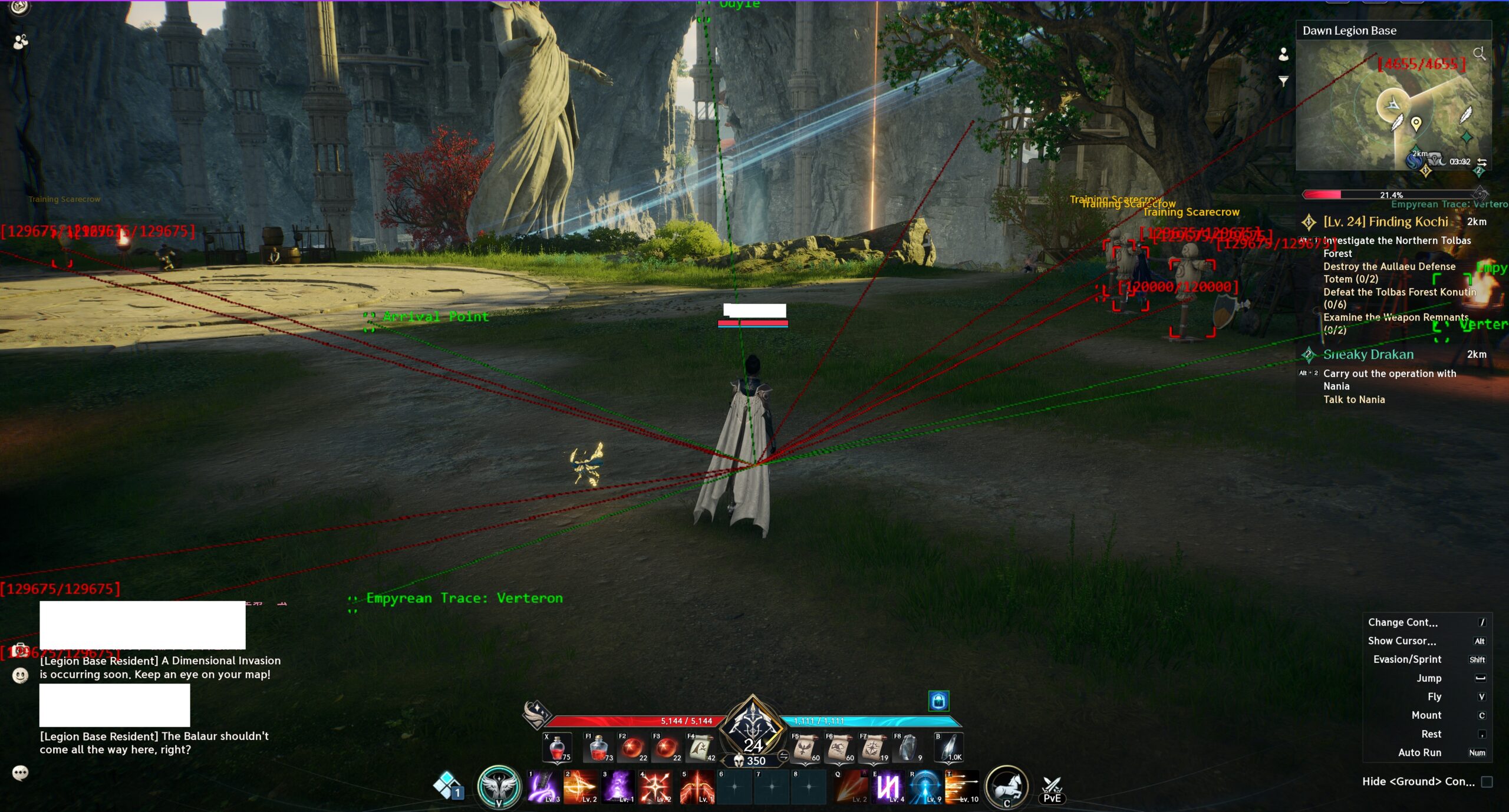
ESP lines have been added, which draw lines between your character and entities on the screen. You can also set a static convergence point if you prefer (some people like the middle of the top of the screen). Check out the new ESP settings here.
April 10, 2026
The Aion 2 Speeder has been updated to version 73.
Speeder will now automatically use the game's memory to move your character if the game window is not the active window.
The "get % MS" command will now also populate the "YV" variable with your current y-velocity (i.e., your falling/jumping speed). Someone asked for a way to determine if you were falling. Example:
- keys=get % MS|cmp(VAR % YV),-1000.0|dbg % probably falling!
The "fly" command can now be used on its own to determine if you are flying/gliding. Example:
- keys=fly|dbg % I am flying or gliding
The default value for line 23 has been changed from 100 to 200.
April 7, 2026
The Aion 2 Speeder has been updated to version 72.
Both "abl" commands will now auto-target the closest mob/player if you are not currently targeting anything (unless you are targeting yourself with the ability).
Both "abl" commands now have a "wait timer" argument, which allows you to pause the script until the ability activates. This is similar to the "wfa*" command. For example,
abl14130000,0,5000
would wait up to 5000 milliseconds for snare shot to activate. This can prevent queuing conflicts with other abilities and can also prevent Speeder from using the same ability twice in a row. Some people have mentioned it being difficult to weave with "abl." This should resolve that.
The "wfa*" command can now check abilities assigned to hotbar slots. For example, rather than having to type in the ability ID for hotbar slot 1, you can simply do
wfa*1
and Speeder will wait for your hotbar slot 1 ability to fire.
Waymarks will check vertical distance as well as horizontal.
April 5, 2026
The Aion 2 Speeder has been updated to version 71.
The "pk" command will now work correctly after the first keypress.
If using the "cd" command to check the cooldown of a hotbar ability/slot, Speeder will also check whether the ability is currently active/available (the same way "ch" does).
The "pse" command can now contain an asterisk to check only the first four digits of the status effect ID (e.g., pse*1400).
The following script command has been added:
- "gset[gear set number]" — If your active gear set number equals "gear set number," the rest of the keys line will process. The inverse is possible with !gset. Example:
- keys=!gset2|pk4000|dbg % Swapping to gear set 2
- "4000" is just a placeholder for the key you have set to swap to gear set 2.
April 4, 2026
The Aion 2 Speeder has been updated to version 70.
The new "abl" command has been significantly improved. It now works flawlessly while moving and is extremely fast. I noticed proc abilities (e.g., Q ability) seem to activate instantly. I will update the example combat macros.
It is now possible to check the cooldown of any ability regardless of whether it is assigned to the hotbar or not. This is accomplished via the new "cd" script command:
- "cd[ability ID],[timer]" — If the ability with an ID of "ability ID" has a timer of less than or equal to "timer" remaining, the rest of the keys line will process. The inverse is possible with !cd. If "ability ID" is set to a number less than 100, Speeder will instead check the ability assigned to that hotbar slot. Unlike the "ch" command, this command allows you to check the timer of any cooldown regardless of whether it is assigned to the hotbar or not (unless you set "ability ID" to a hotbar slot). If you are unsure what "ability ID" to use, use the cooldown you need the ID for, and then use the -cd console command. Whatever ability ID has a timer higher than 0 is the one you want. "Timer" is optional, should be in milliseconds, and allows you to queue an ability right before it comes off cooldown. If not included, Speeder will default to 0. Examples:
- keys=cd14130000|dbg % Snare Shot is ready!
- keys=cd14130000,500|abl14130000|dbg % queuing Snare Shot!
- keys=cd3|abl3|dbg % Using hotbar slot 3 ability!
With the advent of the "cd" command, it is now possible to script your entire rotation without any reliance on the hotbar.
It is now possible to press keys while the game is inactive/minimized:
- "pk[key ID],[delay]" — Speeder will write to the game's memory to activate the key with an ID of "key ID" and hold it down for "delay" milliseconds. Unlike the "d" and "u" commands, "pk" allows you to send keypresses to the game window without it being the active window. Note that "key ID" is 'not' the same as the virtual key code for the key. Use the -keys console command to retrieve the necessary key IDs for this command. Also note that you must physically press the key at least once before this command will work. (Using Speeder to press the key with the "d" command 'will' work.) "Delay" is optional and will default to 100 if you do not include it. If you set "delay" to 1," the key will be held down and not released. If you set "delay" to 0, the key will be released. Example:
- keys=iti|pk3224|dbg % Pressing F to loot/interact
It is now possible to move your character while the game is inactive/minimized:
- "ar+" — Enables auto-run. This allows you to move forward even when the game is not the active window.
- "ar-" — Disables auto-run.
It is now possible to use functions to move your character instead of keys. This is accomplished via lines 21 & 22 in config.txt:
- Line 21) A function or a list of virtual key codes for keys you’d like Speeder to press before moving to the next waymark. Separate each key code with the “|” character. For example, if you want Speeder to sprint between waymarks: 160|87. If this line is blank, Speeder will default to pressing the “w” key. If you prefer using a function (recommended if you are botting with the game minimized), simply write the name of the function on this line, such as fPress. Whenever Speeder needs to move your character, this function will be called. The function can be present in either your waymark or macro file. Example function to move & sprint:
- [fPress]
keys=ar+
keys2=get % MS|cmp(VAR % MS),600.0|pk3389 - "ar+" activates auto-run, and "pk3389" presses left shift.
- [fPress]
- Line 22) A function or a list of virtual key codes for keys you’d like Speeder to press OR release after moving to the next waymark. If the key is currently pressed, it will be released. Otherwise, it will be pressed a single time. Separate each key code with the “|” character. For example, if you have line 21 set to 160|87 (i.e. sprinting between waymarks), you may want 160|87 on this line. If you prefer using a function (recommended if you are botting with the game minimized), simply write the name of the function on this line, such as fRelease. Whenever Speeder needs to stop moving your character, this function will be called. The function can be present in either your waymark or macro file. Example function:
- [fRelease]
keys=ar- - "ar-" stops auto-run.
- [fRelease]
Using functions for movement allows you to run waymarks with the game minimized/inactive.
April 2, 2026
The Aion 2 Speeder has been updated to version 69.
It is now possible to activate abilities via memory, which means keypresses are no longer required. You can also activate abilities without Aion 2 being the active window. This is accomplished via the new "abl" commands:
- "abl[ability ID/hotbar slot],[target ID]" — Uses the ability with an ID of "ability ID" on your current target, an entity with an ID matching "target ID," or on yourself. Ability IDs can be discerned with the -hotbar or -displayaid console commands. If "ability ID" is less than 100, Speeder will assume you are providing the hotbar slot instead and will use the ability currently assigned to that slot. This command works by writing to the game's memory and allows you to activate all your skills without pressing any keys—regardless of which abilities you've assigned to your hotbar (unless you are providing the hotbar slot for "ability ID"). It works even when the game is not the active window. "Target ID" is optional. If omitted or set to 0, the ability will be used on your current target. If set to 1, the ability will be used on your own character (this is necessary for self-buffs). Otherwise, the ability will be used on the entity with a matching "target ID"—regardless of your current target (i.e., you can use an ability on an entity you are not currently targeting). Also see the abl % command to use abilities on players/mobs by name. Example:
- keys=abl14130000|dbg % using Snare Shot on my current target
- keys=abl1|dbg % using my hotbar slot 1 ability on my current target
- Also check out the example macros.
- "abl % [ability ID],[name],[entity type],[max distance]" — Uses the ability with an ID of "ability ID" on the entity whose name matches "name," whose distance is under "max distance," and whose type (player or mob) matches "entity type." Ability IDs can be discerned with the -hotbar or -displayaid console commands. If "ability ID" is less than 100, Speeder will assume you are providing the hotbar slot instead and will use the ability currently assigned to that slot. Like abl, this works by writing to the game's memory and allows you to activate all your skills without pressing any keys—regardless of which abilities you've assigned to your hotbar (unless you are providing the hotbar slot for "ability ID"). "Name" should refer to the exact name of the entity you want to use the ability on (capitalization matters). See the name on the ESP if you are confused. "Entity type" can be 1 for mobs or 2 for players. "Max distance" is optional and allows you to ignore mobs that are too far away. Example:
- keys=abl % 14130000,Training Scarecrow,1,2000|dbg % using Snare Shot on Training Scarecrow
The example macro has been updated to use the new "abl" command:
[113]
keys=!eq % startup,1|store % startup,1|dbg % Auto-combat enabled
keys2=!itm|tcm2500
keys3=!itm|gt*
keys4=mp*0.4|gt12
keys5=ch3|abl3|dbg % Using slot 3|gt*
keys6=ch4|abl4|dbg % Using slot 4|gt*
keys7=ch5|abl5|dbg % Using slot 5|gt*
keys8=ch6|abl6|dbg % Using slot 6|gt*
keys9=ch7|abl7|dbg % Using slot 7|gt*
keys10=ch8|abl8|dbg % Using slot 8|gt*
keys11=ch2|abl2|dbg % Using slot 2|gt*
keys12=ch1|abl1|dbg % Using slot 1|gt*
keys13=s10
endkeys=dbg % Auto-combat disabled|store % startup,0
repeat=2
April 1, 2026
The Aion 2 Speeder has been updated to version 68.
The -scan command has been fixed.
It is now possible to translate text in the console. This is accomplished via line 60 in config.txt. It is also possible to translate text in Launcher if you are interested in that. See the translation guide here.
March 30, 2026
The Aion 2 Speeder has been updated to version 67.
The following console command has been added:
- -party [distance or command] — Designates nearby players as party members or manipulates the current list. See the -ally command for a list of commands. Both ally or party member script commands (e.g., tcpA/tcpP) will affect party members.
Additional script commands have been added to utilize the new -party command, such as tcpP to target party members, tphpP to target the lowest HP party member, tcpsP to target party members with specific status effects, etc. Basically, all the commands that could check for ally players can now check for party members as well. Ultimately, I will make -party automatic so you don't have to use it, but this will work well in the meantime.
The distance calculation between your character and entities has been changed slightly. It was brought to my attention that max range of abilities only takes into account horizontal distance and that you can still hit targets if you are far above or below them (so long as they are within ~2000 horizontal distance). Thus, Speeder will now use horizontal distance by default for 'most' things. However, the difference in height between your character and other entities must also be below whatever distance you supply. For example, if you do tcm2000, the mob must be within 2000 horizontal and 2000 vertical distance. I can allow you to specify a more exact height difference if needed.
The "td" script command has been altered to allow you to check either total distance or horizontal distance:
- "td[distance],[height]" — If your current target's distance is less than or equal to "distance," the rest of the keys line will process. The inverse is possible with !td. "Height" is optional and, if included, will tell Speeder to use horizontal distance (hDistance) for "distance" instead of total distance (tDistance) to your target. This can be preferable because skill distances seem to ignore your vertical distance to the target. If "height" is included, the difference in height between your character and your target must be equal to or below "height." You can see distances easily with the -allentities/-allmobs/etc. commands. Examples:
- keys=td2000|dbg % my current target is within 2000 total distance of my character
- keys=td2000,2000|dbg % my current target is within 2000 horizontal distance and height of my character
The "unstick" "keys" section has been fixed and will correctly stop when a command returns false.
The "get % target" script command will now populate the TANI global variable with your target's current animation ID.
The following script command has been added:
- "str % [variable name],[string]" — If the string/value in "variable name" contains "string," the rest of the keys line will process. The inverse is possible with !str. Examples:
- keys=store % testvar,TEST_STRING|str % testvar,TEST|str % testvar,STRING|dbg % both TEST and STRING appear in the variable testvar
- keys=store % testvar,12345678|str % testvar,3|str % testvar,7|dbg % both 3 and 7 appear in testvar
The following console command has been added to allow you to see attack speed changes in real time:
- -speed — Toggles the display of the attack speed hack ON/OFF for lines 49 and 56. This can be useful if you want to ensure your settings are correct. Every time an animation or attack ID matches ones of the IDs set in your file(s), you will see the speed reflected in the console.
The following line has been added to config.txt to allow you to see status effect names instead of IDs:
- Line 59) The name of a .txt file that has a list of status effect IDs and their associated names. This allows you to see the names of status effects in the console instead of IDs. The syntax in the file is as follows:
[status effect ID]:[name]
such as
10000:Status Effect Name
The .txt file should be placed in the same folder as config.txt and should not contain any spaces, such as statuseffects.txt.
The "wfa" script command can now contain two asterisks, which will check only the first four digits of your current attack ID, such as wfa**1400.
March 27, 2026
The Aion 2 Speeder has been updated to version 66.
You can now instruct Speeder to use only the first four digits of attack IDs (e.g., "1400" instead of "14000030"), which makes it much easier to assign speeds to various attack IDs. In most situations, this involves appending an asterisk to the command or ID, such as aid*1400. On line 56 in config.txt, you should append an asterisk to the ID itself, such as 1400*:50 to set any attack beginning with "1400" to a speed of 50. The guide has been updated to explain all this.
You can now set a static movement speed increase rather than percent-based:
- Line 4) This line activates the movement speed hack. It will take your base/current movement speed and multiply it by the number on this line. For example, if you change this line to 1.2, you will receive a 20% boost to your movement speed. If you would prefer a static increase instead, append "1" to the line with the "|" character, such as
100|1
to increase your base movement speed by 100. Normal movement speed in Aion 2 is 500 (before buffs).
Static movement speed increases might work better for some people if they experience a lot of rubberbanding while dashing.
The following console command has been added:
- -input — Reinitializes kernel input. Use this if you are idle for an extended period of time and your mouse or keyboard shuts off.
The following script commands have been added:
- "tcps[*][distance],[status effect]" — Targets the closest player within "distance" currently under the effect of "status effect." If an asterisk is included, such as tcps*, the camera will be rotated to face the targeted player. Multiple status effects can be included by separating each with a comma. Example:
- keys=tcps2000,17110000,17230000|dbg % targeted player within 2000 distance under the effect of 17110000 or 17230000
- "tcpsE[*][distance],[status effect]" — Same as "tcps" but targets enemy players.
- "tcpsA[*][distance],[status effect]" — Same as "tcps" but targets ally players.
March 21, 2026
The Aion 2 Speeder has been updated to version 65.
The "chs" command for reassigning hotbar skills now works with stigma skills. Stigma skills must be assigned to slots 21-24 in order for them to work.
The "chid" and -hotbar commands have been fixed and will now check/display the currently active skill.
March 19, 2026
The Aion 2 Speeder has been updated to version 64.
You can now reassign hotbar abilities and items on the fly with the "chs" command:
- "chs[slot],[item/ability ID]" — Reassigns hotbar slot "slot" to the specified item/ability. This allows you to instantly swap items or abilities on your hotbar in real-time. You can reassign (and use) any unlocked ability or item—even those not currently assigned to the hotbar—as long as you assign items to the item hotbar (top) and abilities to the ability hotbar (bottom). For example, you cannot reassign a slot that normally contains an ability to an item and vice versa. Currently, the icon on the hotbar does not change, but the reassignment will still work. To view slots and item/ability IDs, use the -hotbar2 console command. Example:
- keys=chs3,14110000|dbg % slot 3 now contains Gale Arrow
As it says, you will not visually see the icon change, but the reassignment will still work.
March 18, 2026
The Aion 2 Speeder has been updated to version 63.
The "wfa" script command can now contain both animation IDs and attack IDs depending on whether an asterisk is used:
- "wfa[*][animation/attack ID],[timeout]" — The script will pause until your character performs an animation with an ID of "animation ID" or until "timeout" is reached. If an asterisk is used, such as wfa*, Speeder will check for attack IDs instead of animation IDs. You may include multiple animation/attack IDs, such as wfa1234,5678,9012. Animation IDs can be discerned with the -displayani command. Attack IDs can be discerned with the -displayaid command. "Timeout" is optional, should be in milliseconds, and must contain the "T" character to distinguish it from animation IDs, such as 7500T to set the timeout to 7500 milliseconds. Default is 5000. You might find this command useful if you need to hold down a key until an ability activates. Example:
- keys=1d|wfa11450234,3000T|1u
- This example will hold down left click until the attack successfully fires or until 3000 milliseconds pass.
The "aid" script command can now contain multiple attack IDs:
- "aid[attack ID],[timer]" — If your character's current attack has an ID of "attack ID," and the animation timer has progressed beyond "timer," the rest of the keys line will process. The inverse is possible with !aid. It is possible to include more than one attack ID. Simply append each attack ID with a comma, such as aid1,2,3,4,5,etc. Attack IDs can be discerned with the -displayaid command. "Timer" is optional* and should be in seconds, with 0.1 equal to a tenth of a second, 0.5 equal to half a second, and so on. *If you have multiple attack IDs, Speeder will always consider the final number to be the timer. Therefore, in this situation, "timer" is 'not' optional and should be included. If you don't care about the timer, just set it to 0. You might find !aid0 useful to check whether your character is attacking. Examples:
- keys=aid14020000|dbg % currently performing ranger auto-attack
- keys=aid14020000,14030000,14040000,0|dbg % currently performing any of the ranger auto-attacks
The following line has been added to config.txt to allow you to ignore enemy players with specific status effects:
- Line 57) A list of status effect IDs you'd like Speeder to consider when targeting enemy players with script commands (e.g., "tcpE" and "tphp"). If an enemy player has any status effect listed on this line, they will be ignored and will not be targeted. This allows you to ignore enemies with invulnerability and other undesirable status effects. Separate each status effect with the "|" character, such as
1000001|1000002|1000003|etc.
You may also use a .txt file and place all status effects into the .txt file. In the .txt file, the status effects should be listed one per line, such as
1000001 - Invulnerability
1000002 - Defense boost
1000003 - Damage reduction
The advantage of the .txt file is that you can add comments so you remember which IDs correspond to which status effects. All text after the first space " " on every line will be ignored and can be used for notes/comments. If you wish to use a .txt file, write the name of the .txt file on this line. The name of the .txt file should not contain any spaces.
Next update will have a cool hotbar hack where you can instantly swap abilities.
March 15, 2026
The Aion 2 Speeder has been updated to version 62.
It is now possible to use the "aid" command to check attack IDs (rather than animation IDs), which correspond exactly to the same IDs on your hotbar. Unlike animation IDs, these do not change with updates.
- "aid[attack ID],[timer]" — If your character's current attack has an ID of "attack ID," and the animation timer has progressed beyond "timer," the rest of the keys line will process. The inverse is possible with !aid. Attack IDs can be discerned with the -displayaid command. "Timer" is optional and should be in seconds, with 0.1 equal to a tenth of a second, 0.5 equal to half a second, and so on. You might find !aid0 useful to check whether your character is attacking. Example:
- keys=aid14020000|dbg % currently performing ranger auto-attack
As mentioned above, -displayaid can be used to discern attack IDs (you can also use the -hotbar command).
- -displayaid [filter] — Displays attack IDs for you & other entities. For your own character, attack IDs resemble hotbar ability IDs exactly. Thus, when you need to detect what attack you are currently executing, using attack IDs can be easier than animation IDs. For whatever reason, this is not the case for other players. "Filter" may be set to "t," such as -displayaid t, so that only your attacks and your current target's attacks are shown.
You can now use attack IDs for the attack speed hack (instead of animation IDs):
- Line 56) A list of attack IDs and speeds for which you'd like the attack speed hack active. Attack IDs can be discerned with the -displayaid console command. This line allows you to control the speeds of individual attacks rather than using a single speed (line 47) for everything. There are two ways to format this line:
1) a list of IDs and speeds, such as
[attack ID]:[speed]|[attack ID 2]:[speed 2]|etc.
or 2) the filename of a .txt file that contains the attack IDs and speeds, one per line, such as
[attack ID]:[speed] [personal note]
[attack ID 2]:[speed 2] [personal note]
etc.
The advantage of using a .txt file is you can write notes to yourself to remember which attack ID corresponds to which attack. Whichever option you choose, do not include the brackets. For example, if I want to set the speed of my ranger auto-attacks to 50, I would create a .txt file with the following text:
14020000:50 - first ranger auto
14030000:50 - second ranger auto
14040000:50 - third ranger auto
The filename must include the .txt extension and should not have any spaces in it (e.g., attackspeeds.txt).
Speeds on this line will take precedence over lines 47 and 49 and will activate even if line 47 is not active.
I've added two new script commands to toggle the attack speed hack on/off. These are meant to be used with abilities, like dodge, where you do not want the attack speed hack active:
- "as*-" — Disables and blocks the attack speed hack from activating. This is meant to be used with shift or your dodge key so that the attack speed hack does not adversely affect dodge distance. Be sure to call "as*+" to re-enable the hack. Example:
- [160]
keys=caw|as*-|dbg % AS disabled
endkeys=s1000|as*+|dbg % AS enabled
repeat=0
pass=2
- [160]
- "as*+" — Re-enables the attack speed hack if previously disabled with as*-. See above.
I've added two possibly useless script commands, but maybe someone can find some use for them:
- "sat[timer]" — Sets your attack timer to "timer" if it is currently less than "timer." The attack timer is a decimal that increases from 0 to a specific number corresponding to how many seconds the attack takes to execute (e.g., 2.4 if the attack takes 2.4 seconds to complete). By setting "timer" to a number like 3.0, the game will think your attack has completed the moment you use it. Unlike "as*" and the attack speed hack, I did not personally see any benefit to this hack, but I figured I'd add it in case someone else found something interesting. Example:
- keys=sat0.5|dbg % current attack's timer expedited by 0.5 seconds
- "samt[max timer]" — Sets the max timer of your current attack to "max timer." This tricks the game into thinking the attack is longer or shorter than it should be. For example, if an attack's max timer is normally 2.4 seconds, you could use samt1.2 to have the game think the attack's duration is half as long as it should be. Example:
- keys=samt1.2|dbg % current attack max duration set to 1.2 seconds
March 10, 2026
The Aion 2 Speeder has been updated to version 60.
You can now check cooldown timers for hotbar abilities with the "ch" command. It is optional but allows you to start pressing the hotbar key early so you can queue it ahead of time. Here is the updated guide text:
- "ch[slot],[timer]" — If the ability assigned to hotbar slot "slot" is available to be used, the rest of the keys line will process. The inverse is possible with !ch. "Timer" is optional and, if supplied, will check how close the cooldown is to being ready. "Timer" should be a decimal between 0 and 1.0, where 0 means the ability is ready, and 1.0 means you've just used the ability. Thus, the LOWER the number is, the closer the ability is to being ready (the game counts down from 1.0 to 0). If the game timer is less than or equal to the "timer" you supply, the rest of the keys line will process. You can find "slot" numbers here. When creating your combat rotation, the "ch" order should reflect the priority order of your abilities. You will want your highest priority attacks first (i.e., near the top of the macro) and your lowest priority near the end. Examples:
- keys=ch3|49d|rs120,150|49u|dbg % pressing 1 key because slot 3 is ready|gt*
- keys2=ch4,0.05|50d|rs120,150|50u|dbg % pressing 2 key because slot 4 is almost ready|gt*
- In this example, hotbar slot 3 will always be used before slot 4 if it is available.
- See example macros for a full combat rotation template.
The -hotbar console command can be used to see current cooldown timers. Note that the timer defaults to something line 0.731 if the ability has not been used yet, but this will not adversely affect the command. "Timer" will only be checked if the ability is not available.
The following script command has been added:
- "get % status" — Populates variables related to status effects on your character. The nomenclature is as follows:
[STATUS ID]_STACKS
[STATUS ID]_TIME
For example, if you had a status effect 9471054320, the variables would be
9471054320_STACKS
9471054320_TIME
You can use these variables on the ESP to create your own reminders. It's important to note the variables are 'not' updated if you do not have the status effect. You must zero them out before calling get % status OR check to see if TIME has not changed since the previous call. Some advice: you may find it useful to define these status effect IDs with their in-game names so you don't have a bunch of random numbers in your scripts. Example:- [variables]
Stun=9471054320_TIME
[113]
keys=store % (VAR % Stun),0
keys2=get % status
keys3=eq % (VAR % Stun),0|dbg % Not afflicted with stun|gt*
keys4=dbg % Stun has (VAR % (VAR % Stun)) time remaining
keys5=nop
- [variables]
You can now set animation speeds for individual animations (similar to line 49). This is done via line 17 in config.txt.
- Line 17) A list of animation IDs and speeds for which you'd like the animation speed hack (line 16) active. Animation IDs can be discerned with the -displayani console command. This line allows you to control the speeds of individual animations rather than using a single speed (line 16) for everything. There are two ways to format this line:
1) a list of IDs and speeds, such as
[animation ID]:[speed]|[animation ID 2]:[speed 2]|etc.
or 2) the filename of a .txt file that contains the animations and speeds, one per line, such as
[animation ID]:[speed] [personal note]
[animation ID 2]:[speed 2] [personal note]
etc.
The advantage of using a .txt file is you can write notes to yourself to remember which animation ID corresponds to which attack. Whichever option you choose, do not include the brackets. For example, if I want to set the speed of my ranger auto-attacks to 50, I would create a .txt file with the following text:
1008:50 - first auto
1009:50 - second auto
1010:50 - third auto
The filename must include the .txt extension and should not have any spaces in it (e.g., animationspeeds.txt).
Speeds on this line will take precedence over line 16 and will activate even if line 16 is not active.
The "tphp" command for targeting low HP players will no longer target dead players.
March 8, 2026
The Aion 2 Speeder has been updated to version 59.
Good news: Speeder can now read and accurately determine the race of all players in memory. Targeting commands that specifically target enemy or ally players will now work at all times without having to rely on status effects.
The -allplayers, -target, -stats, -ally list, and -enemy list commands have been updated to reflect this improvement.
March 5, 2026
The Aion 2 Speeder has been updated to version 58.
The -scan command has been fixed since the most recent game update.
March 1, 2026
The Aion 2 Speeder has been updated to version 57.
Releasing mouse buttons with the -relay command has been fixed.
You can now use "-relay m" or "-relay k" to relay the mouse or keyboard individually.
The following setting has been added to config.txt:
- Line 55) If 1, Speeder will no longer attach to Aion2.exe automatically, and you will be required to use the -pid console command. If running multiple instances of Aion2.exe, this allows you to run multiple Speeders and attach each to different game instances.
February 23, 2026
The Aion 2 Speeder has been updated to version 56.
Alternate entity names have been added for mobs and objects. These names reflect the entity's model and can allow you to distinguish between two entities with the same generic name (e.g., two "Hidden Cubes" with different appearances/models). These alternate names can be toggled with the new -altname console command or via two new lines in config.txt.
Console commands:
- -altname m — Speeder will use and display alternate mob names based off the mob's model. This can allow you to distinguish between two different mobs bearing the same name.
- -altname o — Speeder will use and display alternate object names (loot, gathering objects, interactables, etc.) based off the object's model. This can allow you to distinguish between two different objects bearing the same name.
Config:
- Line 53) If 1, Speeder will use alternate naming for 'object' entities (gathering objects, loot, interactables, etc.). This alternate name reflects the entity's model and may be useful when two or more entities share the same generic name. For example, two different Hidden Cubes may bear the same generic name but have different model names. By using the model name instead of the generic name, you can create more specific radar/ESP filters and/or targeting commands. You may also toggle this setting on/off with the "-altname o" console command.
- Line 54) If 1, Speeder will use alternate naming for mobs. This alternate name reflects the mob's model and may be useful when two or more mobs share the same generic name. For example, two mobs may have different coloring/size but bear the same generic name. The alternate name, based on the mob's model, will allow you to distinguish between them. This can allow you to create more specific radar/ESP filters and/or targeting commands. You may also toggle this setting on/off with the "-altname m" console command.
On line 35, you can now ignore mobs based off IDs as well as names. To ignore based off IDs, include the pound/number sign (#) somewhere in the number, such as #1234. The guide has more examples.
The following console command has been added to aid with playing Aion 2 in a VM:
- -relay — Injected keys and mouse movements will be relayed to Speeder's driver and re-injected as hardware input. This allows you to use Windows API functions like SendInput without the anticheat blocking you. This command is meant to be used in VMs where your input might be software-based and blocked by the anticheat.
February 20, 2026
The Aion 2 Speeder has been updated to version 53.
The "mtt" script command will stop attempting to run toward your target if it no longer exists.
A bottleneck when running the radar + ESP has been fixed.
Performance improvements.
February 8, 2026
The Aion 2 Speeder has been updated to version 51.
The following setting has been added to config.txt:
- Line 52) The maximum number of entities Speeder will attempt to read from memory. If the console displays "Entity total capped," you can increase the number on this line to allow Speeder to read more entities. The default is 10000.
February 7, 2026
The Aion 2 Speeder has been updated to version 50.
The max entity limit has been increased to 4000. I can increase it further if needed.
The "to" command for toggling macros programmatically has been improved:
- “to[macro key],[toggle]” — If “macro key” is supplied, Speeder will activate the macro that would normally be activated by “macro key”—as if you had pressed the key to activate it. If that macro is already active, it will be toggled off. If “macro key” is not supplied, the current macro will be toggled off. It is possible to use 'keys' that don't exist. For example, if you have a macro set to [999], you can use "to999" to activate it. "Toggle" is optional and allows you to control whether the macro is enabled/disabled. Set "toggle" to 1 to enable a macro and 0 to disable it. IMPORTANT: You cannot activate a macro with interrupt=1 or 2 with this command because the macro will be immediately interrupted since you are not physically pressing the key. Examples:
- keys=to119|dbg % toggling my F8 macro on or off
- keys=to999,1|dbg % enabling a macro set to 999
- keys=to999,0|dbg % disabling a macro set to 999
February 5, 2026
The Aion 2 Speeder has been updated to version 49.
It is now possible to blacklist animations/attacks from the attack speed hack. This may be useful for the dash/evade ability so it is not unreasonably short. I think the ID for dash/evade is usually 476, but this may be class specific.
- Line 48) A list of animation IDs for attacks you do 'not' want the attack speed hack (line 47) active. Because the attack speed hack can significantly shorten your evade animation, you may want to blacklist it, along with anything else adversely affected. Animation IDs can be discerned with the -displayani console command. The syntax for this line is as follows (do not include brackets):
[animation ID]|[animation ID 2]|etc.
It is now possible to set different speeds for different animations. Rather than using line 47 to set a generic speed for all animations, you might find it easier/better to only apply the attack speed hack to specific animations. This avoids the dash/evade problem completely. If you set this line up correctly, you don't need to use lines 47 and 48 at all.
- Line 49) A list of animation IDs and speeds for which you'd like the attack speed hack active. Animation IDs can be discerned with the -displayani console command. This line allows you to control the speeds of individual attacks rather than using a single speed (line 47) for everything. There are two ways to format this line:
1) a list of IDs and speeds, such as
[animation ID]:[speed]|[animation ID 2]:[speed 2]|etc.
or 2) the filename of a .txt file that contains the animations and speeds, one per line, such as
[animation ID]:[speed] [personal note]
[animation ID 2]:[speed 2] [personal note]
etc.
The advantage of using a .txt file is you can write notes to yourself to remember which animation ID corresponds to which attack. Whichever option you choose, do not include the brackets. For example, if I want to set the speed of my ranger auto-attacks to 50, I would create a .txt file with the following text:
1008:50 - first auto
1009:50 - second auto
1010:50 - third auto
The filename must include the .txt extension and should not have any spaces in it (e.g., attackspeeds.txt).
Speeds on this line will take precedence over line 47 and will activate even if line 47 is not active.
The following teleport hack has been added:
- Line 50) A pseudo-teleport hack that teleports you in the direction of the camera. This is meant to allow you to teleport inside objects to 'hide' from other players. The syntax is as follows:
[key]|[speed]
such as
113|5
to enable/disable the hack with F2 and teleport you at a speed of 5 (slightly faster than normal movement speed). Teleporting only works over short distances, so the best way to utilize this hack is to stand in front of the object you want to teleport into, press the teleport key, and then move inside. This hack requires WASD movement. If you are not using WASD for movement, please see line 51. - Line 51) The virtual key codes of your movement keys in the following order:
[forward]|[left]|[back]|[right]
such as
87|65|83|68
for normal WASD movement. If you are using WASD movement, you can leave this line blank. This line is only needed for people 'not' using WASD.
The following script command has been added:
- "cnpE[number of players],[distance],[max height]" — Exactly the same as "cnp" but only checks for enemy players (i.e., players not recognized as allies due to faction or the -ally command).
February 2, 2026
The Aion 2 Speeder has been updated to version 48.
An attack speed hack has been added to Speeder. It can be adjusted on line 47 of config.txt. Simply set the line to 5, and you should see a reduction in the delay between your attacks.
- Line 47) Attack speed hack. This hack significantly reduces the delay between attacks, resulting in increased DPS. The way it works is Speeder will take the number you input here and use that as a multiplier for the game's animation timer. By using a high number like 50, the game will think your animations complete almost instantly and allow you to start the next attack earlier than normal. I recommend trying 5. You can also use the "as*" script command if you want to adjust the speed for different abilities. Please note this is not like a traditional attack speed hack in the sense you will not see your character attacking faster, but if you measure the delay in between your attacks, you will see it is all but eliminated. On ranger, for example, it normally takes me 8 seconds to complete 10 auto-attacks. With this hack, it only takes ~6.8 seconds.
The following script commands have been added:
- "as*[speed]" — Sets the attack speed hack to "speed." Example:
- keys=as*50|dbg % enabling attack speed hack
- "cphp[*][number of players],[distance],[health]" — If there are "number of players" within "distance" whose HP is less than or equal to "health," the rest of the keys line will process. The inverse is possible with !cphp. If an asterisk is included (cphp*), Speeder will only check players distinguished by the -ally command. You can use this to check the HP of party members or allies. "Health" should be a decimal between 0 and 1.0, with 0.5 equal to 50% HP. Example:
- keys=cphp*1,2000,0.5|tphp*2000|dbg % targeting the lowest HP player below 50%
January 28, 2026
The Aion 2 Speeder has been updated to version 47.
ESP display has been reworked/improved. Instead of displaying bounding boxes, it will only display the corners of the box, which eliminates a lot of clutter. I also changed the default font to one that's a bit crisper. Line 27 in config.txt can be used to adjust the length of the corner lines.
Speeder will now automatically release movement keys when the unstick "keys" section activates.
The following line has been added to config.txt:
- Line 46) A divisor for the %dist% ESP wildcard (see line 29). For example, if you set this line to 10, then instead of displaying "2000" for an entity's distance, the ESP will display "200" instead.
January 21, 2026
The Aion 2 Speeder has been updated to version 46.
The following script command has been added:
- "get % res" — Populates the following global variables with data related to monitor and game resolutions: RESX (monitor resolution width), RESY (monitor resolution height), MONX (the leftmost X coordinate for the monitor), MONY (the highest Y coordinate for the monitor), GRESX (game resolution width), GRESY (game resolution height), GX (left game window position), GY (top game window position). For most people, MONX and MONY will both be 0 because the primary monitor will always be 0,0. If you are using a monitor to the left of the primary monitor, you will see something like -3840 for MONX. Ideally, you are playing on your primary monitor with borderless window mode, in which case MONX, MONY, GX, and GY will all be 0, which makes the math a lot easier.
I have changed the syntax for -tw* and -twrepeat* when appending a specific waymark to start at. You can still use "|", but you can now also use a comma, which allows you to use
cc % -tw* waymarkfile.ini,?
without any issues.
The waymark index saved when you pause your waymarks will now reflect the current waymark index and not the next.
January 17, 2026
The Aion 2 Speeder has been updated to version 45.
The "item" script command has been added to check your currently selected item. By combining this with the "m" (mouse) command, you can quickly iterate through your inventory items and dispose of unwanted items.
- "item[Item ID]" — If you have currently selected an item with an ID of "item ID," the rest of the keys line will process. The inverse is possible with !item. Item IDs can be discerned with the -item console command. This command only works if you have left clicked or selected the item in some manner (i.e., hovering the mouse over it does not work). Example:
- keys=m2000,200|s100|1d|rs120,200|1u|s100|item610670045|m2000,1000|s100|1d|rs120,200|1u
- This example moves the mouse to an inventory slot, clicks the slot, checks for item 610670045 (Fresh Aria), moves the mouse to the trash icon, and clicks it.
The "rn" script command has been added to check the name of the current region/area.
- "rn % [region]" — If the region you're currently in matches "region," the rest of the keys line will process. The inverse is possible with !rn % [region]. Region names can be discerned with the -region console command. Example:
- keys=rn % Dawn Legion Base|dbg % I am in the Dawn Legion Base
January 14, 2026
The Aion 2 Speeder has been updated to version 44.
The "aniT" command has been fixed.
A more blatant error message will be displayed if kernel input fails.
January 10, 2026
The Aion 2 Speeder has been updated to version 43.
ESP script commands have been added to Speeder. These allow you to add your own text to the ESP, such as macro notifications, boss triggers, nearby player warnings, etc.
- "esp % add,[group ID],[text ID],[text],[x],[y],[font size],[font color]" — Writes "text" to "x," "y" on your screen. "Group ID" can be any number and refers to a group of text elements that all have the same font size. For example, if you want all text to be the same size, you only need a single "group ID." "Text ID" can be any number and refers to the ID of individual text elements. This ID is necessary if you wish to adjust the text element in the future with other esp commands. Example:
- keys=esp % add,1,1,THIS IS A TEST,100,100,50,120000
- "esp % edit,[group ID],[text ID],[text]" — Changes the text displayed by text element "text ID" in "group ID" to "text." Example:
- keys=esp % edit,1,1,THIS IS ANOTHER TEST
- "esp % move,[group ID],[text ID],[x],[y]" — Moves the text element "text ID" in "group ID" to "x," "y" on your screen. Example:
- keys=esp % move,1,5,500,750|dbg % moving text element 5 in group 1 to 500,750
- "esp % size,[group ID],[size]" — Resizes all text elements in "group ID" to "size." Example:
- keys=esp % size,1,100|dbg % resizing all text elements in group 1 to 100
- "esp % color,[group ID],[text ID],[color]" — Changes the font color for "text ID" in "group ID" to "color." Color values can be found here. Example:
- keys=esp % color,1,3,60000|dbg % changing text element 3 in group 1 to green
- "esp % delete,[group ID],[text ID]" — Deletes either the text element "text ID" in "group ID" OR deletes the entire "group ID" (i.e., all text elements in that group) if "text ID" is not supplied. Examples
- keys=esp % delete,5|dbg % deleting every text element in group 5
- keys2=esp % delete,1,5|dbg % deleting text element 5 in group 1
- "esp % redraw" — Erases everything on the ESP and redraws it.
The following script commands have been added:
- "get % MS" — Populates the MS variable with your current movement speed. Among other things, you can use this to determine whether you are sprinting or flying. Examples:
- [113]
keys=get % MS
keys2=!cmp1200.0,(VAR % MS)|dbg % I am flying|gt*
keys3=!cmp800.0,(VAR % MS)|dbg % I am sprinting|gt*
keys4=dbg % I am jogging
keys5=nop - [114]
keys=get % MS|dbg % My current movement speed is (VAR % MS)
- [113]
- "fly*[percent]" — If your flight gauge percent is less than or equal to "percent," the rest of the keys line will process. “Percent” should be written as a decimal with 0.5 equal to 50%. The inverse is possible with !fly*. Example:
- keys=fly*0.5|dbg % I have used up half of the flight gauge
- "fly[flight gauge]" — Same as "fly" above but checks your literal flight gauge value. The inverse is possible with !fly. To see your current flight gauge value, use the -stats command. Example:
- keys=!fly150000|dbg % I have greater than 150000 of my flight gauge remaining
The following lines have been added to config.txt:
- Line 44) If this line is not blank, Speeder will move your character when you hold down WASD and your velocity is 0. Basically, if you are locked in place due to an animation, you will now be able to move. HOWEVER, this seems just to cause rubberbanding is not that useful, but you can try it out if you want. Perhaps a low speed will work? The number you write on this line controls how fast you will move. I recommend a number around 5.0.
- Line 45) Any entity on this line will be considered a mob. This can be useful if an entity is incorrectly identified as an object or something else. The syntax is as follows:
Mob Name One|Mob Name Two|Mob Name Three|etc.
Alternatively, you can create a separate .txt file and write the name of the file on this line. In the file, write one mob name per line, such as
Mob Name One
Mob Name Two
etc.
The name of the .txt file must include the .txt file extension (e.g., forcedmobs.txt).
Lines 35 & 40 have been fixed.
January 8, 2026
The Aion 2 Speeder has been updated to version 42.
The following script command has been added:
- "get % target" — Populates the following variables: TN (your current target's name), TD (your current target's distance), and TID (your current target's ID). Example:
- keys=it|get % target|dbg % I am currently targeting (VAR % TN)
The "mtg," "mtm," and "mtp" script commands will now stop if the entity disappears from memory.
Lines 35 & 40 in config.txt can now contain a list of the only mobs/objects you DON'T want Speeder to ignore. Every mob/object will be ignored except for the ones listed here IF an asterisk is appended to the name, such as Mob Name*. See the guide for more details.
-scan has been fixed since the last update.
The following console command has been added:
- -enemy [distance or command] — Distinguishes nearby players as enemies or manipulates the current list. See the -ally command for a list of commands.
The -gpc console command has been fixed.
January 4, 2026
The Aion 2 Speeder has been updated to version 40.
The following setting has been added to fix ESP alignment for ultrawide resolutions:
- Line 43) Field of view correction for the ESP if you are using ultrawide resolutions. The number on this line is added to the game's base field of view. This allows text and bounding boxes to align properly when using nonstandard resolutions. For 21:9 resolutions (e.g., 3440x1440), I have found "17" to work well. If you are using a standard 16:9 resolution, you can leave this line blank.
You can now ignore players by name via line 42 in config.txt:
- Line 42) Players you would like Speeder to ignore. This can be used to prevent Speeder from targeting specific players. The syntax is as follows:
Player Name One|Player Name Two|Player Name Three|etc.
Alternatively, you can create a separate .txt file and write the name of the file on this line. In the file, write one player name per line, such as
Player Name One
Player Name Two
etc.
The name of the .txt file must include the .txt file extension (e.g., ignoredplayers.txt).
Files for ignoring mobs, objects, and players will now load properly.
Player targeting commands (e.g., "tcp") will now avoid players with 0 HP.
In PvP zones, Speeder can now automatically distinguish enemy players from allies, so you should not need to use the -ally command for most PvP content.
December 28, 2025
The Aion 2 Speeder has been updated to version 39.
The -radar console command has been added to allow you to close transparent radars.
The radar and ESP can now distinguish ally players from other players. See the relevant pages for more details.
The "kd" script command can now contain multiple keys by separating each with a comma. If any are pressed, the rest of the keys line will process.
The following line has been added to config.txt:
- Line 41) If 1, macros can be used immediately. Normally, Speeder waits until the game is the active window and addresses can be read, but if you set this line to 1, you can use macros regardless of whether the game is running or not.
December 25, 2025
The Aion 2 Speeder has been updated to version 38.
The "iti" script command now detects loot as originally intended.
The -ally console command can now designate your current target as an ally. This is done via
-ally target
The script command "lwf" and loading new waymark files via "script=" have been fixed.
The virtual key code for the "kd" command can be set to 0 if you want to check for ANY keys currently being pressed.
The following line has been added to config.txt:
- Line 40) Objects you would like Speeder to ignore. This can be used to prevent Speeder from targeting specific objects. The syntax is as follows:
Object Name One|Object Name Two|Object Name Three|etc.
Alternatively, you can create a separate .txt file and write the name of the file on this line. In the file, write one object name per line, such as
Object Name One
Object Name Two
etc.
The name of the .txt file must include the .txt file extension (e.g., ignoredobjects.txt).
A crash when right-clicking the console should be resolved.
December 22, 2025
The Aion 2 Speeder has been updated to version 37.
An issue where zoning could cause the reading of the entity list to freeze has been fixed. Pretty sure this was causing animation IDs to fail as well, so those should be fixed.
December 21, 2025
The Aion 2 Speeder has been updated to version 34.
It is now possible to teleport behind your current target for easy back attacks. This is achieved with the new "tbt" script command, and I have included an example in the example macros. It actually works very well, even with relatively high ping.
- "tbt[distance]" — Teleports you behind your current target. "Distance" affects how far back you teleport. I've found 100 to work well. I recommend pairing this command with "td" so that you only teleport when you are close to your current target. Otherwise, the teleport will likely fail and result in rubberbanding. Importantly, you must do something to update your position in order for the back attacks to actually register. This can be as simple as holding down the W key (or one of your movement keys). See the example macros.
You can now check whether you are currently behind your target or not with the "tdir" script command.
- "tdir[direction difference]" — If your current target's facing direction relative to your character's current position is less than or equal to "direction difference," the rest of the keys line will process. The inverse is possible with !tdir. This command can be used to check if you are behind your current target (or in front). "Direction difference" is a radian value, where 0 is directly behind your target, so you will want to use a number around 0.78 to check for back attacks. Example:
- keys=tdir0.78|dbg % I am behind my current target
How can now hide entities on the ESP/radar with the -hide console command.
- -hide [ID] — Hides your current target on the ESP/radar, or, if "ID" is supplied, hides the entity with the corresponding ID. Entity IDs can be discerned with the -allmobs or -allobjects commands. These hidden entities will be stored in a randomly named .txt file. You will find the .txt file in the same folder as config.txt, and the name of the file will be on line 38 of config.txt.
You can now include a "timer" for the "ani" and "aniT" script commands if you only want the commands to return true when the animation has progressed beyond a certain time.
- "ani[animation ID],[timer]" — If your character is currently performing an animation with an ID of "animation ID," and the animation timer has progressed beyond "timer," the rest of the keys line will process. The inverse is possible with !ani. Animation IDs can be discerned with the -displayaid command. "Timer" is optional and should be in seconds, with 0.1 equal to a tenth of a second, 0.5 equal to half a second, and so on. You might find !ani0 useful to check whether your character is attacking. Example:
- keys=ani11450234|dbg % currently performing animation 11450234
- "aniT[animation ID]" — If your current target is performing an animation with an ID of "animation ID," the rest of the keys line will process. The inverse is possible with !aniT. Animation IDs can be discerned with the -displayaid command. "Timer" is optional and should be in seconds, with 0.1 equal to a tenth of a second, 0.5 equal to half a second, and so on. This command can be used to react to enemy attacks. Because your target's animation ID will always be 0 when your target is not attacking, you can use !aniT0 to react to ANY attack. Two examples:
- keys=aniT12345,0.3|160d|rs120,200|160u|dbg % pressing left shift to evade attack 12345 after it has progressed for 0.3 seconds
- keys=!aniT0|160d|rs120,200|160u|dbg % pressing left shift to evade any attack
Animation ID address has been fixed and should always return a static value per animation.
The following lines have been added to config.txt:
- Line 38) The filename of the file containing entities to be ignored on the ESP/radar. Speeder will create this file for you automatically if you use the -hide console command.
- Line 39) A list of virtual key codes corresponding to the macro keys you would like reassigned. This is meant to be used with encrypted scripts so that you can change macro keys without needing to access the original script. The syntax is as follows: [original key]:[new key]|[original key 2]:[new key 2]:etc. Example:
113:81|114:70
F2 (113) would be reassigned to Q (81), and F3 (114) would be reassigned to F (70).
Line 35 in config.txt can now point to a .txt file containing the mobs you want Speeder to ignore.
- Line 35) Mobs you would like Speeder to ignore. This can be useful if you are playing a class with pets/minions. As you do not want to attack your own pets, you can input their names here to avoid issues with commands like tcm (target closest mob). The syntax is as follows:
Mob Name One|Mob Name Two|Mob Name Three|etc.
Alternatively, you can create a separate .txt file and write the name of the file on this line. In the file, write one mob name per line, such as
Mob Name One
Mob Name Two
etc.
The name of the .txt file must include the .txt file extension (e.g., ignoredmobs.txt).
December 19, 2025
The Aion 2 Speeder has been updated to version 33.
The following console command has been added:
- -ally [distance or command] — Distinguishes nearby players as allies or manipulates the current list. There are three main ways to use this command:
1) -ally 2000, where all players within 2000 distance will be considered allies
2) -ally clear, where the current ally list will be cleared/reset, and
3) -ally list, where the console will display the current list of allies.
This command is meant to be used with script commands like "tphp" to target and heal party members vs. targeting and damaging enemy players. Note that you can use this command in a macro if you wish:
keys=cc % -ally 2000
The following script command has been added:
- "tphp[*][distance]" — Targets the player with the lowest HP within "distance." If an asterisk is included, such as tphp*, Speeder will only target players distinguished by the -ally console command. This allows you to target party members for healing. If an asterisk is NOT included, all players EXCEPT players distinguished by the -ally console command are potential targets. If there are no valid targets, the rest of the keys line will not process. Two examples:
- keys=tphp2000|dbg % targeting the lowest HP player within 2000 distance not marked by the -ally command
- keys=tphp*2000|dbg % targeting the lowest HP player within 2000 distance marked by the -ally command
Speeder can now read the current stack number for status effects, as well as the remaining timer. Consequently, the "cts" and "pse" commands have been expanded:
- "pse[status ID],[timer],[stacks]" — If you have a status effect with an ID of "status ID," with a timer over or equal to "timer," and with stacks equal to or greater than "stacks," the rest of the keys line will process. The inverse is possible with !pse. "Timer" is optional and is in milliseconds and can be set to 0 if you don't care about it. "Stacks" is optional and can be omitted. This allows you to check your currently active status effects and reapply them if needed. Status effect IDs can be discerned in the console or via the -stats command. Two examples:
- keys=!pse1234,2000|dbg % you either do not have status 1234 or it is about to expire in 2000 milliseconds
- keys=!pse5678,0,5|dbg % you either do not have status 5678 or do not have 5 stacks of it
- "cts[status ID],[timer],[stacks]" — If your current target has a status effect with an ID of "status ID," with a timer over or equal to "timer," and with stacks equal to or greater than "stacks," the rest of the keys line will process. The inverse is possible with !cts. "Timer" is optional and is in milliseconds and can be set to 0 if you don't care about it. "Stacks" is optional and can be omitted. This allows you to check your target's currently active status effects and reapply them if needed. Status effect IDs can be discerned in the console or via the -target command. Two examples:
- keys=!cts1234,2000|dbg % target either does not have status 1234 or it is about to expire in 2000 milliseconds
- keys=!cts5678,0,5|dbg % target either does not have status 5678 or does not have 5 stacks of it
The "wfa" command can now check for multiple animation IDs:
- "wfa[animation ID],[timeout]" — The script will pause until your character performs an animation with an ID of "animation ID" or until "timeout" is reached. You may include multiple animation IDs, such as wfa1234,5678,9012. Animation IDs can be discerned with the -displayaid command. "Timeout" is optional, should be in milliseconds, and must contain the "T" character to distinguish it from animation IDs, such as 7500T to set the timeout to 7500 milliseconds. Default is 5000. You might find this command useful if you need to hold down a key until an ability activates. Example:
- keys=1d|wfa11450234,3000T|1u
- This example will hold down left click until the attack successfully fires or until 3000 milliseconds pass.
December 17, 2025
The Aion 2 Speeder has been updated to version 31.
It's come to my attention that gathering bots can be significantly simplified with Speeder's new memory targeting ability. Because the game will auto-path you toward your current target, you can simply use "tcg" and then press the F key (or your interaction key) to have the game auto-run you toward your target and interact with it. You can now design waymark routes that place you in the center of a bunch of potential gathering locations, use cng and tcg to target nearby gathering points, and then press F to gather from all of them.
Consequently, the "tcg" commands have been revamped to allow you to utilize memory targeting:
- "tcg[*][distance]" — Targets the closest object (gathering point, loot, NPC, etc.) within "distance." If an asterisk is included, such as tcg*, the camera will be rotated to face the targeted object. If there are no valid targets, the rest of the keys line will not process. Because objects cannot be targeted with TAB, Speeder will use memory targeting by default. This allows you to very easily target and run toward any object simply by pressing the interaction key. Example:
- keys=tcg2000|s100|70d|rs120,200|70u
- This example will target the closest object within 2000 distance, run you toward it, and then interact with it. This assumes your interaction key is F (default).
- "tcg[*] % [name],[distance]" — Targets the closest object within "distance" whose name contains "name" (partial match OK). If an asterisk is included, such as tcg* % [name], the camera will be rotated to face the targeted object. If there are no valid targets, the rest of the keys line will not process. Example:
- keys=tcg % Sapphire,2000|s100|70d|rs120,200|70u
- This example will target the closest Sapphire within 2000 distance, run you toward it, and then interact with it. This assumes your interaction key is F (default).
I have also written a new example macro for gathering if you want to check that out.
December 16, 2025
The Aion 2 Speeder has been updated to version 30.
Animation IDs have been fixed. They will now persist and remain static after restarting the game.
The -output console command has been fixed.
The following script command has been added:
- "tm[*][distance]" — Targets a random mob within distance. If an asterisk is included, such as tcm*, the camera will be rotated to face the targeted mob. If there are no valid targets, the rest of the keys line will not process.
December 14, 2025
The Aion 2 Speeder has been updated to version 27.
Massive update! Targeting has been completely revamped as I was able to figure out how to target via memory. This means you can target anything regardless of the camera's current direction. It's also instant and does not rely on keypresses.
Consequently, the following line has been added to config.txt:
- Line 37) If 1, Speeder will use tab targeting to target entities when targeting commands (e.g., tcm, tcp, tcg) are used. Otherwise, Speeder will use the game's memory for targeting, which is much faster and does not require you to be facing the target.
The following script commands have been added:
- "ani[animation ID]" — If your character is currently performing an animation with an ID of "animation ID," the rest of the keys line will process. The inverse is possible with !ani. Animation IDs can be discerned with the -displayaid command. Example:
- keys=ani11450234|dbg % currently performing animation 11450234
- "aniT[animation ID]" — If your current target is performing an animation with an ID of "animation ID," the rest of the keys line will process. The inverse is possible with !aniT. Animation IDs can be discerned with the -displayaid command. This command can be used to react to enemy attacks. Because your target's animation ID will always be 0 when your target is not attacking, you can use !aniT0 to react to ANY attack. Two examples:
- keys=aniT12345|160d|rs120,200|160u|dbg % pressing left shift to evade attack 12345
- keys=!aniT0|160d|rs120,200|160u|dbg % pressing left shift to evade any attack
- "wfa[animation ID],[timeout]" — The script will pause until your character performs an animation with an ID of "animation ID" or until "timeout" is reached. Animation IDs can be discerned with the -displayaid command. "Timeout" is optional and should be in milliseconds. Default is 5000. You might find this command useful if you need to hold down a key until an ability activates. Example:
- keys=1d|wfa11450234|1u
- This example will hold down left click until the attack successfully fires.
- "tid[*][entity ID]" — Targets the entity whose ID matches "entity ID." Entity IDs can be discerned with -allmobs, -allplayers, -allobjects, or -target command. The number in parentheses is the ID. Unlike names, IDs are unique to every entity, so you may find this command useful if you need to target a specific entity—or if there are multiple entities with the same name. If an asterisk is included, such as tid*, the camera will be rotated to face the target. If there are no valid targets, the rest of the keys line will not process.
- "iti" — If you are currently targeting an interactable entity (i.e., entities where you would press F to interact with them, such as gathering points, loot, NPCs, etc.), the rest of the keys line will process. The inverse is possible with !iti. This command is useful to determine whether the gathering point in front of you is available or whether there is loot nearby. Example:
- keys=iti|70d|rs120,200|70u|dbg % pressing F to loot or gather
The following console command has been added:
- -displayaid [filter] — Displays animation IDs for you & other entities. "Filter" may be set to "t," such as -displayaid t, so that only your animations and your current target's animations are shown.
December 13, 2025
The Aion 2 Speeder has been updated to version 26.
Speeder can now adjust the camera's pitch and perform vertical movements. You can now create waymark routes in the air, as well as target entities in the air. Commands that run you toward entities (e.g., mtm, mtg, mtp, etc.) will now adjust the pitch by default. Targeting commands (e.g., tcm, tcp, tcg, etc.) will also adjust the pitch by default, but this can be disabled if you wish on line 36 of config.txt.
The -cf console command has been fixed.
The following script commands have been added:
- "lt+" — The camera will be locked on your current target until lt- is used, or the entity disappears. Always be sure to call lt- at some point. See the example combat macros for an example.
- "lt-" — If lt+ was used previously, the camera will be unlocked from your current target.
The following lines have been added to config.txt:
- Line 35) Mobs you would like Speeder to ignore. This can be useful if you are playing a class with pets/minions. As you do not want to attack your own pets, you can input their names here to avoid issues with commands like tcm (target closest mob). The syntax is as follows:
Mob Name One|Mob Name Two|Mob Name Three|etc. - Line 36) If 0, Speeder will not adjust the camera's pitch when aiming at targets. This affects the up/down movement of the camera.
A crash related to the ESP has been fixed.
December 13, 2025
The Aion 2 Speeder has been updated to version 25.
Speeder can now detect status effects both for your own character and your current target. Consequently, the following script commands have been added:
- "cts[status ID]" — If your current target has a status effect with an ID of "status ID," the rest of the keys line will process. The inverse is possible with !cts. This allows you to check your target's currently active status effects. Status effect IDs can be discerned in the console or via the -target command.
- "pse[status ID]" — If you have a status effect with an ID of "status ID," the rest of the keys line will process. The inverse is possible with !pse. Status effect IDs can be discerned with the -stats command or by looking at the console window.
A max zoom hack has been implemented. Simply change line 34 in config.txt to the distance you want:
- Line 34) Max zoom distance. Normal max zoom distance is 1800, so if you write a number higher than that, you will be able to zoom your camera out farther.
December 12, 2025
The Aion 2 Speeder has been updated to version 24.
The -taiwan console command has been removed. You can now specify your region in Launcher before running Speeder. This allows me to update the addresses in real-time. Updating Launcher to v133 is necessary.
I have updated the offsets for retrieving player data due to some people having issues on the Taiwan client.
The -target command will now work with gathering objects.
The following script command has been added:
- "it" — If you are currently targeting anything, the rest of the keys line will process. The inverse is possible with !it.
December 8, 2025
The Aion 2 Speeder has been updated to version 21.
The ESP has been fully implemented and shows all mobs, players, and interactable objects (such as gathering objects, loot, etc.).
The radar has been updated to show interactable objects as well.
The following settings have been added to config.txt:
- Line 26) Settings for the position of the ESP text (e.g., distance). Each setting should be separated with the "|" character. The order of the settings is as follows:
- X offset (how far left or right of the entity the text appears). Default is 10.
- Y offset (how far up or down the text appears). Default is 150.
- Line 27) Settings for the size and position of the bounding box for the ESP. Each setting should be separated with the "|" character. The order of the settings is as follows:
- X offset (how far left or right of the entity the box appears). Default is -6.
- Y offset (how far up or down the box appears). Default is 0.
- The width of the bounding box. Default is 50.
- The height of the bounding box. Default is 150.
- The depth of the bounding box. Default is 50.
- These settings are not required and only needed if the bounding box is out of place.
- Line 28) How thick you want the ESP's bounding boxes to be. Default is 1.
- Line 29) Custom ESP text for mobs, players, and objects. You may insert dynamic text with the following variables: %hp% (current HP), %mhp% (max HP), %dist% (distance), and %name% (entity's name). The syntax is as follows:
[mob text]|[player text]|[object text]
such as
%name% (%hp%/%mhp%)|%name% (%dist%)|%name% (%dist%)
to display mobs with their names and their current HP and max HP in parentheses, and players and objects with their names and current distance in parentheses. - Line 30) The virtual key code of your targeting key. If this line is blank, Speeder will assume your targeting key is TAB. If you are not using TAB for targeting, you should set this line to the key you are using. You can also set the delay between key presses when Speeder is attempting to target something. The default delay is 150 milliseconds, which seems to work fine, but if this is too fast (i.e., Speeder is skipping over the intended target), you can try increasing it. The syntax is as follows:
[virtual key code]|[key press delay]
such as
9|150
to press TAB every 150 milliseconds, which are the default settings if you leave this line blank. - Line 31) Custom radar entity colors and text. The syntax is as follows:
[entity name],[color],[custom text]|[entity name 2],[color],[custom text]|etc.
such as
Orichalcum,255,ORICHALCUM|Sapphire,120000,SAPPHIRE
to colorize orichalcum with an RGB of 255 and display it with the text ORICHALCUM, and to colorize sapphire with an RGB of 120000 and display it with the text SAPPHIRE. "Entity name" should match the name displayed on the radar exactly. You can hide entities by setting the "color" to 0. These settings take precedence over all other radar settings, so even if you were to disable objects on the radar, orichalcum and sapphire would still be displayed (in the above example). This can be useful if you are only interested in a very small number of entities: disable all entities on the radar and then write the entities you do want displayed here. - Line 32) Custom ESP entity colors and text. The syntax is as follows:
[entity name],[color],[custom text]|[entity name 2],[color],[custom text]|etc.
such as
Orichalcum,255,ORICHALCUM|Sapphire,120000,SAPPHIRE
to colorize orichalcum with an RGB of 255 and display it with the text ORICHALCUM, and to colorize sapphire with an RGB of 120000 and display it with the text SAPPHIRE. "Entity name" should match the name displayed on the ESP exactly. You can hide entities by setting the "color" to 0. These settings take precedence over all other ESP settings, so even if you were to disable objects on the ESP, orichalcum and sapphire would still be displayed (in the above example). This can be useful if you are only interested in a very small number of entities: disable all entities on the ESP and then write the entities you do want displayed here.
The following script commands have been added:
- "cng[number of objects],[distance],[max height]" — If there are "number of objects" within "distance" and no farther than "max height" below or above you, the rest of the keys line will process. The inverse is possible with !cng. Example:
- keys=cng1,2000|dbg % there is at least one object within 2000 distance
- "cng % [name],[distance],[max height]" — If an object whose name contains "name" is within "distance" and "max height" of your character, the rest of the keys line will process. The inverse is possible with !cng. Use the -allobjects command to see object names. Example:
- keys=cng % Orichalcum,2000,2000|dbg % There is an orichalcum gathering point within 2000 distance
- "tcg[distance]" — Faces the camera toward the object closest to your character within "distance." Because you cannot target objects with TAB, this command only rotates the camera. If there are no valid targets, the rest of the keys line will not process. Example:
- keys=tcg2000|dbg % camera is now facing toward the closest object within 2000 distance
- "tcg % [name],[distance]" — Faces the camera toward the closest object within "distance" whose name contains "name" (partial match OK). If there are no valid targets, the rest of the keys line will not process. Example:
- keys=tcg % Sapphire,2000|dbg % camera now facing toward the closest Sapphire within 2000 distance
- "mtg % [name],[distance],[how close]" — Exactly the same as "mtm" but moves toward objects (gathering points, loot, etc.) instead. This command will use the last loaded "[unstick]" section to determine behavior when your character is stuck (or dead). You may add this section to your waymark or macro file. Example:
- keys=mtg % Sapphire,2000,-100|s1000|70d|rs150,200|70u
- This example moves toward the closest Sapphire within 2000 distance and presses F to gather.
December 7, 2025
The Aion 2 Speeder has been updated to version 20.
Waymarks have been fully implemented. Waymarks allow your character to move along predefined routes, attacking mobs along the way, gathering items, completing quests, etc.
The following settings have been added to config.txt:
- Line 19) Teleport hop distance and timer used with the tele* console command. "Hop distance" is how far you are teleported with every teleport increment, and the timer is the number of milliseconds to wait between each teleport. The syntax is as follows:
[Hop distance]|[Hop timer]
such as
10|10
which are the default values if this line is not filled out. - Line 20) If 1, Speeder will use wide characters to display text on the console, which is necessary for some languages, like Korean and Chinese.
- Line 21) A list of virtual key codes for keys you’d like Speeder to press before moving to the next waymark. Separate each key code with the “|” character. For example, if you want Speeder to sprint between waymarks: 160|87. If this line is blank, Speeder will default to pressing the “w” key.
- Line 22) A list of virtual key codes for keys you’d like Speeder to press OR release after moving to the next waymark. If the key is currently pressed, it will be released. Otherwise, it will be pressed a single time. Separate each key code with the “|” character. For example, if you have line 17 set to 160|87 (i.e. sprinting between waymarks), you may want 160|87|83 on this line. The “s” key (83) prevents your character from continuing to move forward due to sprint.
- Line 23) How close your character should be to the intended destination when using any movement-related commands. For example, if you set this line to 100 (default), Speeder will stop moving your character once you are within 100 distance of the intended destination.
- Line 24) The virtual key code of the key you'd like to use to pause any running waymarks or movement-related commands.
The following console commands have been added:
- -twrepeat* [filename.ini] — Speeder will read from "filename.ini" and move you from waymark 0 to the final waymark and then restart from waymark 0. Within this file, the keys must be sequentially ordered starting at 0. This is meant to be used with -record (see below) as the file generated by -record is formatted specially for this command. Nevertheless, you can certainly make your own waymark files as long as they follow this format. For more waymark information, check out the [Waymarks] section. Make sure to set a key to line 24 so that you can disable this at will. If you would like Speeder to begin at a specific index, insert it at the very end with the “|” character: -twrepeat* Recorded Waymarks.ini|7. If you would like Speeder to begin at the closest waymark, insert |? at the very end: -twrepeat* Recorded Waymarks.ini|?
- -tw* [filename.ini] — Speeder will read from "filename.ini" and move you from waymark 0 to the final waymark and then stop. Within this file, the keys must be sequentially ordered starting at 0. This is meant to be used with -record as the file generated by -record is formatted specially for this command. Nevertheless, you can certainly make your own waymark files as long as they follow this format. Unlike -twrepeat*, -tw* does NOT restart from 0 after the last waymark. For more waymark information, check out the [Waymarks] section. Make sure to set a key to line 24 so that you can disable this at will. If you would like Speeder to begin at a specific index, insert it at the very end with the “|” character: -tw* Recorded Waymarks.ini|7. If you would like Speeder to begin at the closest waymark, insert |? at the very end: -tw* Recorded Waymarks.ini|?
- -record [distance],[wait time],[initial camera sleep] — Speeder will record waymarks (and, optionally, camera position) as you move your character in the game and travel beyond “distance.” “Wait time” is how long Speeder should wait at each waymark. “Initial sleep” is how long you want Speeder to wait before adjusting the camera. Please note that camera position will only be saved if you use the -cl command or press the key assigned to line 7 in config.txt. (This is to give you time to adjust the camera.) If you omit “initial sleep” entirely, the camera position will not be saved. Typing -record a second time will save these waymarks into a randomly named .ini file. If you choose to use line 7, simply set distance to something like 99999 so that Speeder will never create waymarks automatically. Example usage:
- -record 99999,30,100 – waymarks will never be created automatically but only when the -cl command is used and/or line 7. Camera position will be saved.
- -record 10,30 – a waymark will be created every 10 distance. Camera position will not be saved.
The following script commands have been added:
- “c[yaw]” — The camera's yaw will be adjusted to point in this direction (left/right). This is a degree value that should be between -180 and 180. Make use of the -cl command to retrieve your camera’s current position. For example, c0 would point the camera north.
- “cy[pitch]” — The camera's pitch will be adjusted to point in this direction (up/down). This is a degree value that should be between -180 and 180. Make use of the -cl command to retrieve your camera’s current position. For example, cy0 would point the camera directly ahead.
- "tcp[*][distance]" — Targets the closest player within "distance." If an asterisk is included, such as tcp*, the camera will be rotated to face the targeted player. If there are no valid targets, the rest of the keys line will not process. Example:
- keys=tcp*2000|dbg % rotating camera toward and targeting the closest player within 2000 distance
- "tt" — The camera will be rotated to face your current target.
- "cnp[number of players],[distance],[max height]" — If there are "number of players" within "distance" and no farther than "max height" below or above you, the rest of the keys line will process. The inverse is possible with !cnp. Example:
- keys=cnp1,2000|dbg % there is at least one player within 2000 distance
- "mt[x],[y],[z]" — Moves your character to x,y,z. This command will use the last loaded "[unstick]" section to determine behavior when your character is stuck (or dead). You may add this section to your waymark or macro file.
- "mtm % [name],[distance],[how close]" — Speeder will move you toward the closest mob with name "name" as long as the mob is closer than "distance." It is possible to omit "name," in which case Speeder will search for the closest mob. It is possible to set distance to 0, in which case any mob in memory will be a potential target. "How close" controls how close you want your character to be to the mob with 0 being on top of the mob. Because you cannot stand exactly on top of the mob, it is a good idea to use a negative value, such as -100, so that your character stops in front of the mob. A positive value will place you behind the mob. This command will use the last loaded "[unstick]" section to determine behavior when your character is stuck (or dead). You may add this section to your waymark or macro file. Example:
- keys=mtm % ,10000,-100|dbg % I am now standing in front of the closest mob within 10000 distance
- "mtp % [name],[distance],[how close]" — Exactly the same as "mtm" but moves toward players instead. This command will use the last loaded "[unstick]" section to determine behavior when your character is stuck (or dead). You may add this section to your waymark or macro file.
- "mtt[how close]" — Moves your character toward your current target. "How close" controls how close you want your character to be to your target with 0 being directly on top. Because you cannot stand directly on top of most entities, it is a good idea to use a negative value, such as -100, so that your character stops in front of the mob. This command will use the last loaded "[unstick]" section to determine behavior when your character is stuck (or dead). You may add this section to your waymark or macro file. Example:
- keys=mtt-100|dbg % now standing in front of my target
- “lwf % filename.ini” — The waymark file “filename.ini” will be loaded. The global variables WMARKF (current filename) and WMARKI (current waymark index) will be populated. These can be used to return to the previous file if desired.
- "itp" — If you are currently targeting a player, the rest of the keys line will process. The inverse is possible with !itp.
December 6, 2025
The Aion 2 Speeder has been updated to version 18.
The following console commands have been added:
- -stats — Displays your current HP, MP, and stamina.
- -allplayers [distance] — Speeder will display data for all players in memory. If "distance" is included, Speeder will only display data for players within that distance from your character.
The following script commands have been added:
- "tmhp[*][distance]" — Targets the mob with the lowest HP within "distance." If an asterisk is included, such as tmhp*, the camera will be rotated to face the targeted mob. If there are no valid targets, the rest of the keys line will not process. Example:
- keys=tmhp2000|dbg % targeted the lowest HP mob within 2000 distance
- "cthp*[percent]" — If your current target's HP percentage is less than or equal to "percent," the rest of the keys line will process. The inverse is possible with !cthp*. “Percent” should be written as a decimal with 0.5 equal to 50%. Example:
- keys=cthp*0.5|dbg % my target has less than half health remaining
- "cthp[health]" — If your current target's HP is less than or equal to "health," the rest of the keys line will process. The inverse is possible with !cthp. Example:
- keys=cthp1500|dbg % my target has less than or equal to 1500 HP
- “hp*[percent]” — If your current HP percent is less than or equal to “percent,” the rest of the keys line will process. “Percent” should be written as a decimal with 0.5 equal to 50%. The inverse is possible with “!hp*.” Example:
- "hp[health]" — Same as "hp" above but checks your literal health value. The inverse is possible with "!hp". Example:
- keys=hp1500|dbg % I have less than or equal to 1500 HP
- "mp*[percent]" — If your current MP percent is less than or equal to “percent,” the rest of the keys line will process. “Percent” should be written as a decimal with 0.5 equal to 50%. The inverse is possible with “!mp*.” Example:
- keys=mp*0.5|dbg % I am at or below half MP
- "mp[mana]" — Same as "mp" above but checks your literal mana value. The inverse is possible with "!mp". Example:
- keys=mp1500|dbg % I have less than or equal to 1500 MP
- “sta*[percent]” — If your current stamina percent is less than or equal to “percent,” the rest of the keys line will process. “Percent” should be written as a decimal with 0.5 equal to 50%. The inverse is possible with “!sta*.” Example:
- keys=sta*0.5|dbg % I am at or below half stamina
- "sta[stamina]" — Same as "sta" above but checks your literal stamina value. The inverse is possible with "!sta". Example:
- keys=sta1500|dbg % I have less than or equal to 1500 stamina
The radar has been improved and can now display mobs, players, and NPCs.
December 5, 2025
The Aion 2 Speeder has been updated to version 16.
Boss targeting fixed + added support for "tcm."
I have found the real hotbar slot numbers in the game's memory. After some deliberation, I've decided to use them because it will just be too messy in the future if I try to convert them into left-to-right order. Thus, with apologies, the slot numbers for the hotbar can be found here. You will need to adjust your macros. For example, ch1 is now your left click attack, ch2 your right click, etc.

December 5, 2025
The Aion 2 Speeder has been updated to version 15.
The -target and itm commands will now work properly when targeting bosses.
The following setting has been added to config.txt:
- Line 19) If 1, Speeder will use wide characters to display text on the console, which is necessary for some languages, like Korean and Chinese.
December 3, 2025
The Aion 2 Speeder has been updated to version 13.
Hotbar commands will now correctly display the active ability ID for the specified slot. For example, if you proc an ability, and that ability moves into a hotbar slot as the active ability, that ability ID will now be used by Speeder. This fixes "chid" and allows you to check for procs.
December 2, 2025
The Aion 2 Speeder has been updated to version 12.
The following console command has been added:
- -target — Displays data related to your current target.
The following script commands have been added:
- "td[distance]" — If your current target's distance is less than or equal to "distance," the rest of the keys line will process. The inverse is possible with !td. You can see distances easily with the -allentities/-allmobs/etc. commands. Example:
- keys=td2000|dbg % my current target is within 2000 distance of my character
- "itm" — If you are currently targeting a mob, the rest of the keys line will process. The inverse is possible with !itm.
The -scan console command now works for both KR/TW clients and should also work after most updates.
November 30, 2025
The Aion 2 Speeder has been updated to version 11.
An issue where Speeder could write to incorrect addresses while zoning has been fixed.
Auto-targeting has been implemented. You can now use the "tcm" and "tcm % [name]" commands to target nearby mobs:
- "tcm[*][distance]" — Targets the closest mob within "distance." If an asterisk is included, such as tcm*, the camera will be rotated to face the targeted mob. Example:
- keys=tcm*2000|dbg % rotating camera toward and targeting the closest mob within 2000 distance
- "tcm[*] % [name],[distance]" — Targets the closest mob within "distance" whose name contains "name" (partial match OK). If an asterisk is included, such as tcm* % [name], the camera will be rotated to face the targeted mob. Example:
- keys=tcm* % Drakan,2000|dbg % rotating camera toward and targeting the closest Drakan within 2000 distance
November 27, 2025
Radar has been fully implemented. Only mobs/NPCs show right now, but more will be added.
The "ch" and "-hotbar" commands should now be working correctly.